

Login
Configure single sign-on session behaviour and the default application redirect.
A single sign-on session decides how long a user stays signed in across your applications before being asked to authenticate again. The Login tab sets that behaviour, along with where users land after signing in. Self-service sign-up has its own tab; see Registration.
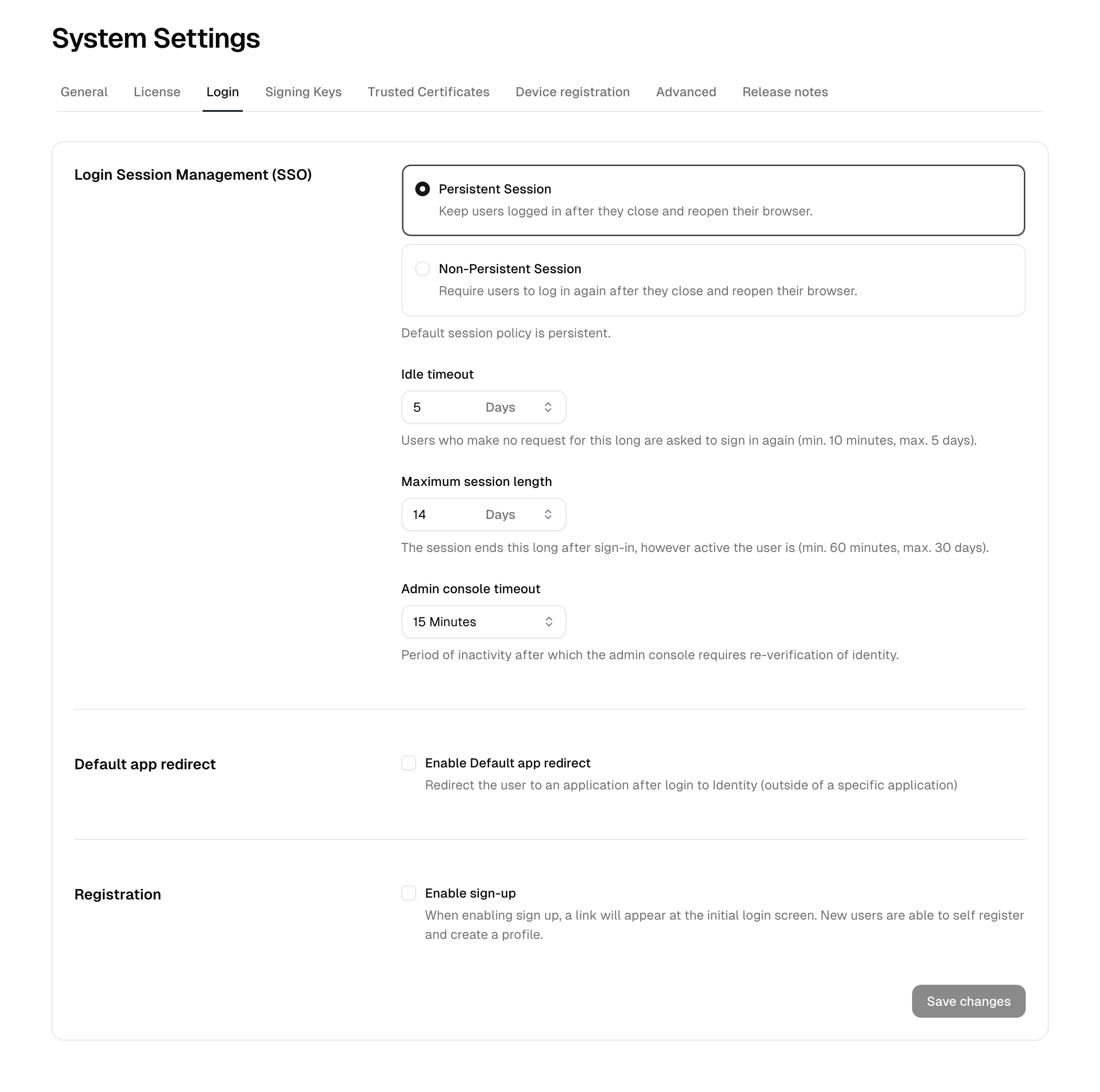
Session management (SSO)
These settings govern the lifetime of a single sign-on session — how long a user stays signed in across applications.
Session persistence
Choose whether sessions persist:
- Persistent session — the session survives the browser being closed and reopened, until a timeout below is reached. This is the default.
- Non-persistent session — the session ends when the browser is closed.
Timeouts
Two independent timeouts bound a session:
| Setting | Effect | Range |
|---|---|---|
| Idle timeout | The session ends after this much time without a request; the next visit asks for a sign-in again. | 10 minutes to 5 days |
| Maximum session length | The session ends this long after sign-in, however active the user is. | 60 minutes to 30 days |
Enter a number and pick the unit (minutes, hours, or days), then click Save changes.
Note: These timeouts are the instance-wide single sign-on defaults. A user directory can carry its own session settings that apply to that directory's users; see User directories. When both exist, the per-directory setting is what applies to a user in that directory.
Default application redirect
By default, a user who signs in directly at the platform lands on their personal portal. Enabling a default application redirect sends them straight to a chosen application instead.
- Tick Enable default app redirect.
- Pick the target application from the list. Only applications that have a valid launch URL configured can be selected.
- Click Save changes.
Applications are configured under Integrations → Applications.
What language the login page shows
You do not write the login or sign-up screen text yourself. The wording comes from the instance's translated language strings (English, German, French), so "branding" the login screen means two distinct levers:
- Appearance — your logo, theme, and accent colour, set under Branding → Appearance.
- Language — which translated strings are available, set by your enabled-languages list under Settings → General.
For an anonymous visitor, the page renders in the language their browser prefers; a signed-in user gets the language saved on their account. If neither resolves to an available language, the instance default applies. A language only renders if it is among the instance's enabled set.
There is no per-screen free-text or HTML template editor for the login and sign-up pages — adjust the language strings to change the wording.
Domain-based sign-in routing
If you use federated connections, you can route users to a provider automatically by their email domain (Home Realm Discovery): a user who enters an address in a routed domain is sent straight to that provider instead of the password screen. A connection set up this way is reached only by domain routing (and its direct link), so it does not clutter the sign-in screen with an extra button. This is configured on the connection itself, not here — see Connections.
Reference
| Setting | Default | Notes |
|---|---|---|
| Session persistence | Persistent | Whether the session survives a browser restart |
| Idle timeout | — | Session ends after this idle period (10 min–5 days) |
| Maximum session length | — | Session ends this long after sign-in (60 min–30 days) |
| Default app redirect | Off | Sends users to one application after sign-in |
| Domain-based sign-in routing | Off | Set per connection; routes an email domain straight to a provider |