

Connections
Let users sign in with an external identity provider (OIDC, SAML, Microsoft Entra, social) with account linking and JIT user creation.
Plan note: Social providers (such as Google, Apple, GitHub and many more) are part of every plan. Enterprise providers (generic OIDC/SAML, Microsoft Entra, Okta, Auth0, Ping Identity, Keycloak, OneLogin, JumpCloud, DATEV, the electronic-ID aggregators Criipto and Signicat, and the German eID) require the enterprise identity brokering feature, which is included on the Advanced plan and above (and on Trial).
A connection lets your users sign in with an external identity provider — a "Sign in with…" option on the login screen. The platform delegates authentication to the provider, receives the user's profile back, and either links it to an existing account or creates a new one. In protocol terms, the platform acts as the Relying Party (OIDC) or Service Provider (SAML); the external provider is the Identity Provider.
You manage connections under Integrations → Connections in the Admin Console.
Available providers
Connections come in three groups.
Generic (standards-based, configurable more than once):
| Provider | Protocol | Typical use |
|---|---|---|
| OpenID Connect (generic) | OIDC | Any standards-compliant OIDC identity provider. |
| SAML 2.0 (generic) | SAML | Any SAML 2.0 identity provider. |
Enterprise:
| Provider | Protocol | Typical use |
|---|---|---|
| Microsoft Entra | OIDC | Sign-in with a Microsoft Entra (work or school) tenant. |
| Okta | OIDC | Sign-in with an Okta Workforce org. Needs your Okta domain. |
| Auth0 | OIDC | Sign-in with an Auth0 tenant. Needs your Auth0 domain. |
| Ping Identity (PingOne) | OIDC | Sign-in with a PingOne environment. Needs the PingOne host and environment ID. |
| Keycloak | OIDC | Sign-in with a Keycloak realm. Needs the server URL and realm. |
| OneLogin | OIDC | Sign-in with a OneLogin account. Needs your OneLogin domain. |
| JumpCloud | OIDC | Sign-in with a JumpCloud account. |
| DATEV | OIDC | Sign-in with a DATEV account (tax advisors and their clients). |
| Criipto | OIDC | European electronic IDs (MitID, BankID, itsme and more) through one connection to your Criipto tenant. |
| Signicat | OIDC | European electronic IDs through one connection to your Signicat account. |
| German eID (Online-Ausweis) | OIDC | Sign-in with the German ID card via AusweisIDent. |
Social and consumer (each configured once): Amazon, Apple, Basecamp, Bitbucket, Box, DigitalOcean, Discord, Docusign, Dropbox, Facebook, Figma, Fitbit, FreshBooks, GitHub, GitLab, Google, Hugging Face, Intuit (QuickBooks), Kakao, Klarna, LINE, LinkedIn, Microsoft account, netID, PayPal, Salesforce, Slack, SoundCloud, Spotify, Strava, TikTok, Twitch, Vimeo, WordPress.com, X, Xero and Yahoo.
The generic OIDC and SAML connections can be configured more than once (for several different providers); every named provider is configured once each. New providers are added over time, so the create screen is the authoritative list.
The Connections list shows a banner when you reach your plan's connection count limit; clear or remove a connection to add another.
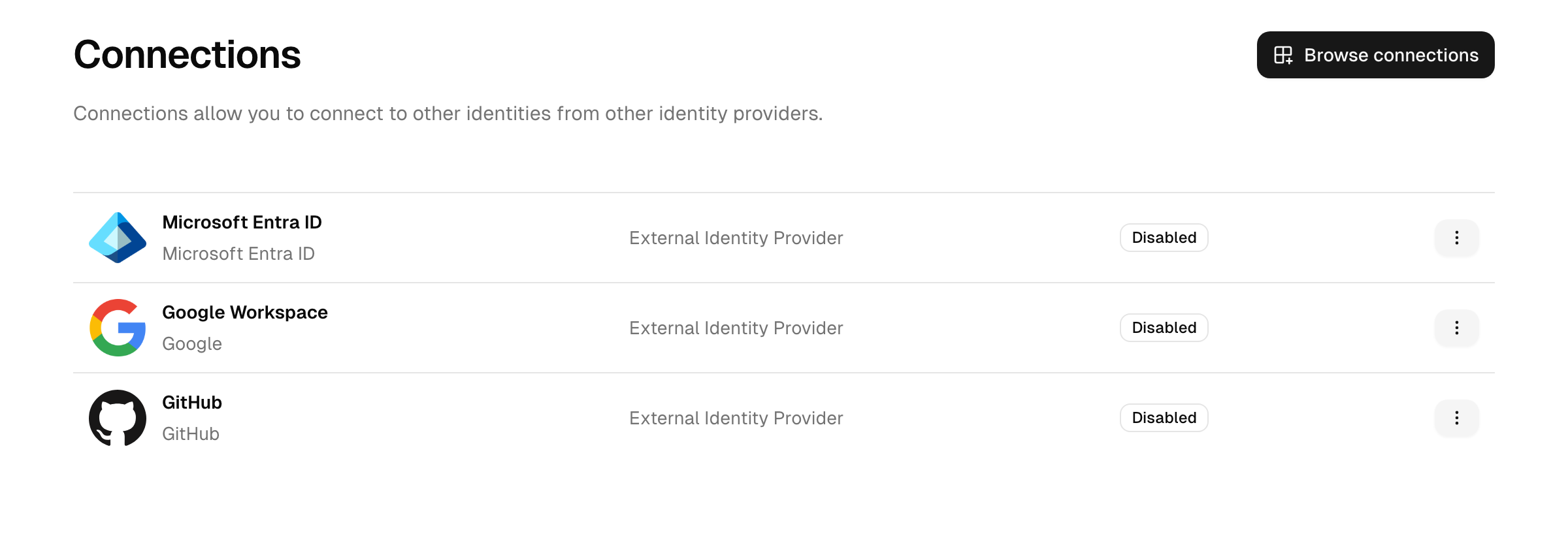
Adding a connection
- On the Connections page, choose Create connection and pick a provider.
- Review the prerequisites the connection shows — for example, registering an application in the external provider to obtain a client ID and secret — and confirm.
- Complete the configuration form (see below).
- Save. New connections start disabled; enable a connection when you are ready for it to appear on the sign-in screen.
Configuration fields
Every connection needs a name and a target directory — the directory new users created through this connection are placed in. See User directories.
The protocol-specific fields are:
- Generic OIDC — the provider's discovery (configuration) URL, a client ID, a client secret, and the scopes to request (defaults to
openid profile email). The discovery URL is read each time, so the connection picks up the provider's endpoints and keys without you re-entering them. - Microsoft Entra — a client ID, a client secret, and the tenant ID (or
commonfor multi-tenant). The provider's endpoints come from Microsoft's discovery document for that tenant. - Okta — a client ID, a client secret, and your Okta domain (for example
acme.okta.com, a preview org, or a custom domain). Create an OIDC Web Application in the Okta Admin Console and assign it to the users who should sign in. - Auth0 — a client ID, a client secret, and your Auth0 domain (for example
acme.eu.auth0.com, or a custom domain). Create a Regular Web Application in the Auth0 Dashboard. - Ping Identity (PingOne) — a client ID, a client secret, the PingOne host (the regional host such as
auth.pingone.comorauth.pingone.eu, or a custom domain) and the environment ID. - Keycloak — a client ID, a client secret, the server URL and the realm. On Keycloak 16 and older, include the
/authbase path in the server URL. Turn on client authentication so the client is confidential. - OneLogin — a client ID, a client secret, and your OneLogin domain (for example
acme.onelogin.com). Set the application's token endpoint authentication method to POST. - JumpCloud — a client ID and a client secret from a custom OIDC application. Set its client authentication type to Client Secret Post.
- DATEV — a client ID and a client secret from an app in the DATEV Developer Portal, subscribed to the "Login with DATEV" product. Production access follows a technical review.
- Criipto — your Criipto tenant domain (for example
acme.criipto.idor a custom domain), a client ID, a client secret, and the electronic ID to use. Because the electronic ID is fixed per connection, add one connection for each electronic ID you want to offer. - Signicat — your Signicat account domain (for example
acme.signicat.com), a client ID, a client secret, and the electronic ID to use. Add one connection per electronic ID. - German eID (Online-Ausweis) — the environment (production or reference), and a client ID and client secret from AusweisIDent. AusweisIDent runs the eID server and holds the authorization certificate, so you integrate over standard OIDC.
- Kakao — a REST API key (client ID) and a client secret. In the Kakao Developers console, enable Kakao Login, activate OpenID Connect under the advanced settings (required to receive an ID token), and configure the consent items. Access to the email address requires a Kakao Business App.
- netID — a client ID and a client secret from a service you register in the netID developer portal. A new service starts sandboxed for allowlisted test users; request its release for production use.
- Intuit (QuickBooks) — a client ID and a client secret from an app in the Intuit Developer portal. Production keys are issued after Intuit completes its app assessment.
- Most social providers — a client ID (sometimes labelled differently, for example Slack's client ID, Bitbucket's key, GitLab's application ID, Docusign's integration key) and a matching secret. Follow each provider's setup guide for the exact field names.
- Providers with a host or region — Salesforce, GitLab and Docusign add a host field (for example a Salesforce My Domain, a self-managed GitLab instance, or the Docusign production versus developer host) so the connection targets the right instance.
- Apple — a Services ID (the client ID), your team ID, the key ID, and the contents of the
.p8private key you download from Apple. The private key is stored encrypted and never shown back; the client secret Apple requires is generated automatically from it. - Generic SAML — the provider's entry point (sign-in) URL, its entity ID, and its signing certificate in PEM form, entered directly. The platform's own callback (ACS) URL and entity ID are shown in the connection's setup guide for you to register on the provider's side.
Secrets and private keys are entered in fields that stay blank when you edit an existing connection: leave a secret field empty to keep the stored value. Secrets are never shown back in plain text or written to logs.
When you set up the connection, each guide also shows the callback URL to register on the provider so the provider routes the sign-in response back to this platform.
Email-domain routing (Home Realm Discovery)
Turn on Home realm discovery on a connection and enter one or more email domains. When a user enters an email address whose domain matches, they are sent straight to that provider instead of the password screen, so people never have to pick the right "Sign in with…" button. Enter the domains as a comma-separated list (for example acme.com, acme.co.uk).
- A connection with email domains set is not shown as a button on the login page; it is reached only by domain routing (or a direct connection link). This keeps the sign-in screen clean when several enterprise providers are configured.
- A domain can be assigned to only one connection; saving a second connection with the same domain is rejected.
- Users whose email domain is not routed, and users who sign in with a username, continue to the normal password screen.
- The email is passed on to an OIDC provider as a
login_hint, so the provider can prefill it and the user does not have to enter their email a second time. SAML providers do not receive it (a SAML sign-in request cannot carry it reliably). - When an application starts sign-in with a known email address (an OIDC
login_hint) in a routed domain, the user is sent to the provider directly, without seeing the sign-in screen first. - Turning Home realm discovery off (or clearing its domains) brings the connection's button back on the login page.
If a routed provider is temporarily misconfigured and you need to reach the password screen for an account in that domain, append ?noHrd=1 to the login URL to skip routing for that visit.
Why you register your own provider app
For every connection (a social provider such as GitHub or LinkedIn, or an enterprise provider such as Okta or Microsoft Entra) you register an OAuth application in the provider and supply its client ID and secret here, rather than using a shared one. This is deliberate:
- The consent screen shows your name and logo, not a generic one.
- The app requests exactly the scopes you need.
- The callback is routed to your own domain, so sign-out and step-up MFA behave correctly.
The connection's prerequisites screen lists what to register before you start.
Account linking
When a user returns through a connection, the platform recognizes them by the stable identifier the provider supplies (not by email) and signs them in to their linked account, refreshing their name and picture from the provider.
To prevent account takeover, if the provider reports an email address that already belongs to a different account not linked to this connection, sign-in is refused rather than silently merging the two — there is no admin "merge accounts" step, and an incoming (especially unverified) email never takes over an existing account. The connection's email is only ever adopted onto an account when the connection is trusted, the provider asserts the email as verified, and the email's domain is not reserved by another directory (see mail-domain reservation under User directories).
Just-in-time user creation
When someone signs in through a connection for the first time and no matching account exists, the platform creates one just in time:
- The new user is placed in the connection's configured directory.
- Their profile (name, email, picture) is taken from the provider.
- They have no password and sign in only through the same connection.
How the new account is activated depends on the trusted source setting:
- If the connection is marked trusted and the provider asserts the email is verified, the account is activated immediately.
- Otherwise the user receives an activation email and must verify their address before the account becomes active.
Social providers default to trusted; the generic OIDC and SAML connections default to untrusted, because you should only trust an email claim from a provider you control or have verified.
Providers without an email address
Some providers do not release an email address (for example X, Strava, Fitbit, SoundCloud, Vimeo and TikTok). The electronic-ID connections (Criipto, Signicat and the German eID) also return a verified name and a national identifier rather than an email. Signing in through one of these still works and still creates an account, but that account has no email: no activation email is sent, and it cannot be matched to an existing account by email. The user can add and verify an email later in their account portal, which also enables email-based recovery and any email-based multi-factor options.
A few providers return an email they do not verify (Spotify, for example). That email is stored on the new account, but it is treated as unverified and never adopted onto a different existing account, so the account still follows your normal verification rules.
Apple
Apple returns the user's name only on the very first sign-in, so a returning Apple user keeps the name captured then. Users who choose Apple's Hide My Email option sign in with a private relay address, which works normally. The .p8 private key you enter is stored encrypted and used only to generate the short-lived client secret Apple requires.
Per-connection settings
| Setting | Effect |
|---|---|
| Name | The label shown in the Admin Console and audit log. |
| Directory | Where just-in-time users are created. |
| Home realm discovery | When enabled, email domains routed to this connection. A user entering an email with one of these domains is sent straight to this provider, and the connection is not shown as a button on the login page. A domain can belong to only one connection. |
| Trusted source | Controls automatic activation and whether the provider's email is adopted. |
| Enabled | Only enabled connections appear on the sign-in screen. |
You can disable a connection to take it off the sign-in screen without deleting it, or delete it entirely. Both actions ask you to confirm by typing the connection name.
Reference
| Term | Meaning |
|---|---|
| Connection | A delegation of sign-in to an external identity provider. |
| Account linking | Matching a returning federated identity to an existing account. |
| Just-in-time (JIT) creation | Creating a new account on a user's first federated sign-in. |
| Trusted source | A connection whose verified-email claim the platform trusts for automatic activation. |
| Home Realm Discovery | Routing a sign-in to a connection automatically, based on the email domain the user enters. |
Troubleshooting
- The provider returns an error on the callback. The most common cause is a redirect (callback) URL that is not registered at the external provider, or a client ID/secret mismatch. Register the exact callback URL shown when you created the connection, and re-check the credentials.
- The token exchange fails with an
invalid_clienterror. Some providers (for example OneLogin and JumpCloud) default the application's token endpoint authentication method to Basic. Set it to POST (client secret post) in the provider's application settings. - Users with a certain email domain are sent straight to an external provider. That domain is assigned to a connection's mail domains, which enables domain-based routing (Home Realm Discovery). Remove the domain from the connection to stop routing it. To reach the password screen once (for example when the provider is misconfigured), append
?noHrd=1to the login URL. - Kakao sign-in fails or returns no ID token. Kakao only issues an ID token when OpenID Connect is activated under the app's advanced Kakao Login settings. A missing consent item also aborts the sign-in; configure the requested consent items (nickname, profile image) in the Kakao console.
- A returning user lands on a new, empty account. Account linking matches a federated identity to an existing account by verified email. If the provider does not return a verified email, or the email differs from the stored one, no match is found and a separate account is created. Confirm the provider releases a verified email claim.
- First-time sign-in through a connection is refused with a domain error. The email's domain is reserved by a different directory. A domain listed on one directory cannot be claimed by users created elsewhere, including just-in-time federated sign-in. Move the reservation or use an address in an unreserved domain.
- A federated user is created but stays inactive. New accounts are activated automatically only for a trusted connection that returns a verified email. For other connections the account follows your normal verification and lifecycle rules.
See also the glossary.