

Application provisioning
Create, update, and deactivate accounts in downstream applications automatically over outbound SCIM, with attribute and group mappings.
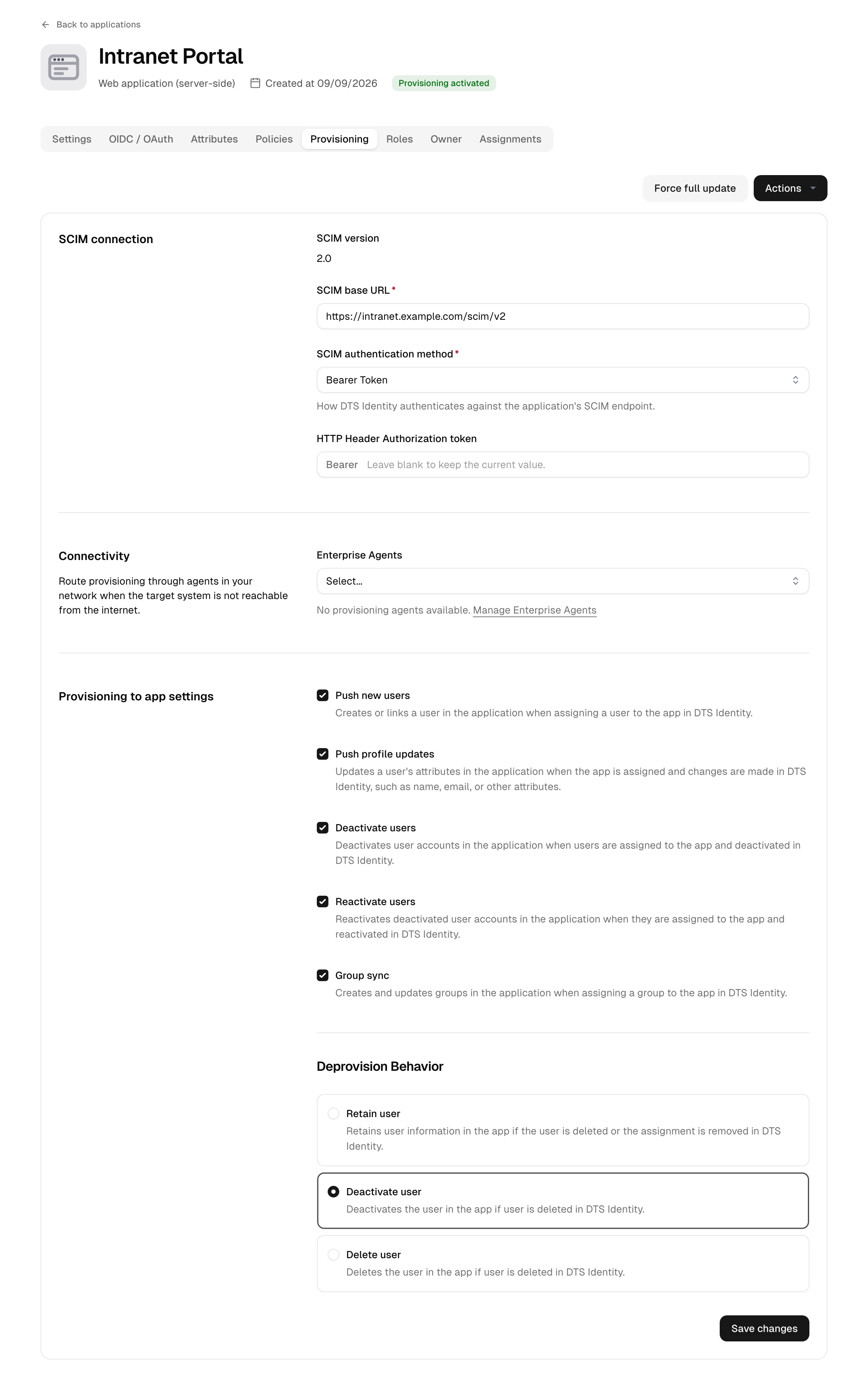
Provisioning keeps accounts in your downstream applications in step with the platform automatically. When you create, change, or deactivate a user — or assign and unassign an application — the platform pushes the matching change to the connected application, so you do not have to maintain accounts by hand in each system.
The platform provisions using SCIM 2.0. It acts purely as an outbound SCIM client: it pushes changes to the applications you connect. It does not run an inbound SCIM server, so other systems cannot provision into the platform over SCIM.
You configure provisioning on an application's provisioning tab under Integrations → Applications.
Plan note: Provisioning is included on the Essential plan and above (and on Trial); it is not part of the Free plan. On the Free plan the provisioning tab still shows what provisioning does, but it cannot be configured or activated.
What provisioning does
Once provisioning is active for an application, the platform can:
- Create an account in the downstream application when a user is assigned to it.
- Update the downstream account when the user's mapped attributes change.
- Deactivate the downstream account when the user loses access, and reactivate it when access returns.
- Sync groups and their memberships, so group structure is mirrored downstream.
Each of these is a separate toggle, so you can — for example — create and update accounts but never deactivate them. The platform primarily provisions users and their attributes; group push is an optional extra that mirrors group objects and who belongs to them, not a way to manage the downstream app's own group structure (that stays in the target app).
Provisioning status
An application's provisioning moves through a small set of states, shown at the top of the provisioning tab:
| Status | Meaning |
|---|---|
| Disabled | No provisioning configured yet. |
| Enabled | Connection details are saved but not yet verified. |
| Tested | The connection to the downstream SCIM endpoint succeeded. |
| Activated | Provisioning is live; the platform keeps the application in sync. |
The usual path is disabled → enabled → tested → activated. You can deactivate provisioning at any time, or delete the configuration to return to disabled.
Setting up provisioning
-
Open the application and go to its provisioning tab.
-
Enter the SCIM base URL of the downstream application and choose an authentication method:
- Bearer token — a token sent in the
Authorizationheader. - Basic — a username and password.
- Custom HTTP header — a header name and value sent verbatim, for targets with a proprietary scheme (for example
Authorization: PLANONKEY accesskey=...orX-Api-Key).
For catalog applications the base URL and method are pre-filled from the integration and are read-only; you only supply the credentials.
- Bearer token — a token sent in the
-
Choose which operations to enable: create users, update users, deactivate users, reactivate users, and group sync.
-
Pick the deprovisioning action — what happens downstream when a user is no longer entitled (see Deactivation behaviour).
-
Optionally, under Connectivity, select one or more provisioning connectors if the target system lives inside your network (see below).
-
Test the configuration. A successful test moves the status to tested.
-
Activate provisioning. From this point the platform keeps the application in sync automatically.
Reaching a target inside your network
If the downstream application is not reachable from the internet, route provisioning through one or more Enterprise Connectors of the provisioning type. Under Connectivity on the provisioning tab, select the connectors to use, in priority order. When connectors are selected, provisioning goes only through them; when none are selected, the platform connects to the target directly over the internet. See Enterprise Connectors.
Attribute mapping
Provisioning maps each platform user to a SCIM user record. The standard mapping covers the common attributes — user name (the login identifier, or email when no separate login exists), display name, given / family / middle name, primary email and phone, and the active flag — and includes the SCIM enterprise extension for attributes such as employee number, department, and manager where they are present.
A user's active state is derived from their status, so deactivating a user on the platform marks the downstream account inactive.
Groups are mapped by name, and their members reference the SCIM identifiers of the users that were provisioned into the same application.
The mapping is fixed and one-to-one: each platform field maps to its SCIM counterpart, with a few sensible fallbacks (for example, user name falls back to email when no separate login is set). There is no expression engine, no scripting, and no per-attribute transform — the platform does not compute or rewrite values, so do not look for a rules editor. For catalog applications the mapping ships with the integration; for custom applications it follows this standard SCIM mapping.
Why did (or didn't) my edit reach the app?
Only mapped attributes flow downstream. If you change a profile field that is part of the standard mapping (name, email, phone, department, and so on), the platform pushes it to every application the user is provisioned to — provided update users is enabled for that app. If you change a field that is not in the mapping, nothing is sent: the downstream account is unaffected.
So when an edit does not appear in a connected app, check, in order: the user still holds an active assignment, update users is on, and the field you changed is one the mapping carries. See People and User profiles and attributes for which fields exist.
When each operation runs
There is no create-only versus update-only split per attribute — the same mapping is used both times:
- With create users on, the full mapped record is written when the user first gains an assignment to the app.
- With update users on, the platform re-sends the mapped attributes whenever the user's profile changes (it skips users whose profile has not changed since the last sync, unless you force a full update).
If you have create users on but update users off, the account is set up once and later edits never reach it. Turn on update users if you need ongoing changes to flow.
Provisioning templates from the catalog
Catalog integrations can include a provisioning template so you do not have to work out the endpoint, authentication method, and mappings yourself. When you add such an application, its provisioning connection is pre-filled and you only supply credentials.
Some catalog entries are provisioning-only — they create and maintain accounts downstream but offer no single sign-on. These appear as a provisioning-only application type with no client secret and no sign-in flow; you configure only their provisioning tab.
Force a full sync
Provisioning normally runs continuously: the platform reacts to user and group changes and to assignment changes, and reconciles each activated application on a short, recurring cycle in the background. You do not need to trigger ordinary changes manually.
If you need to push everything again — for example after fixing a mapping or recovering the downstream system — use Force full update on the provisioning tab. This re-sends every assigned user and group on the next sync cycle, even records that have not changed.
If the downstream credentials stop working (for instance the token is revoked), provisioning automatically steps back to enabled so you can supply new credentials and re-test.
What triggers provisioning
The platform provisions in response to:
- a user being assigned to or unassigned from the application (directly, or through a group, directory, or organization),
- a user's profile changing,
- a user being deactivated or deleted,
- a group or its membership changing.
Assignment is the gate: a user is provisioned into an application only while they hold an active assignment to it.
Deactivation behaviour
A user loses entitlement when their assignment is removed, or when they are suspended, deprovisioned, or deleted on the platform (see User lifecycle). At that point the platform applies the application's deprovisioning action:
| Action | Effect downstream |
|---|---|
| Retain | Leave the downstream account untouched; only the local link is removed. |
| Deactivate | Mark the downstream account inactive (reversible). |
| Delete | Remove the downstream account entirely. |
The default is deactivate — a reversible offboarding that disables the downstream account rather than hard-deleting it, so a returning user can be reactivated. Choose delete only when the connected app must not keep the account at all, or retain when the downstream system must keep historical records.
This lets you predict offboarding: suspend or deprovision a user on the platform, and each connected app's account follows the action you set here. If reactivate users is enabled, restoring the user re-enables a previously deactivated downstream account.
Troubleshooting
- Test fails — re-check the SCIM base URL and credentials, and that the downstream application's SCIM endpoint is reachable.
- Provisioning dropped back to enabled — the stored credentials were rejected. Enter fresh credentials and test again.
- A user was not created downstream — confirm the user holds an active assignment to the application and that create users is enabled.