

License & subscription
View your current tier, add-ons, and usage against your limits, and apply or update a license.
Your license decides which tier you are on, which add-ons are active, and how much of each entitlement you may use. The License tab shows what the current subscription includes, how much of it is in use and, where applicable, lets you apply a new license. For a conceptual overview of the tiers, add-ons, and limits, see Plans & add-ons.
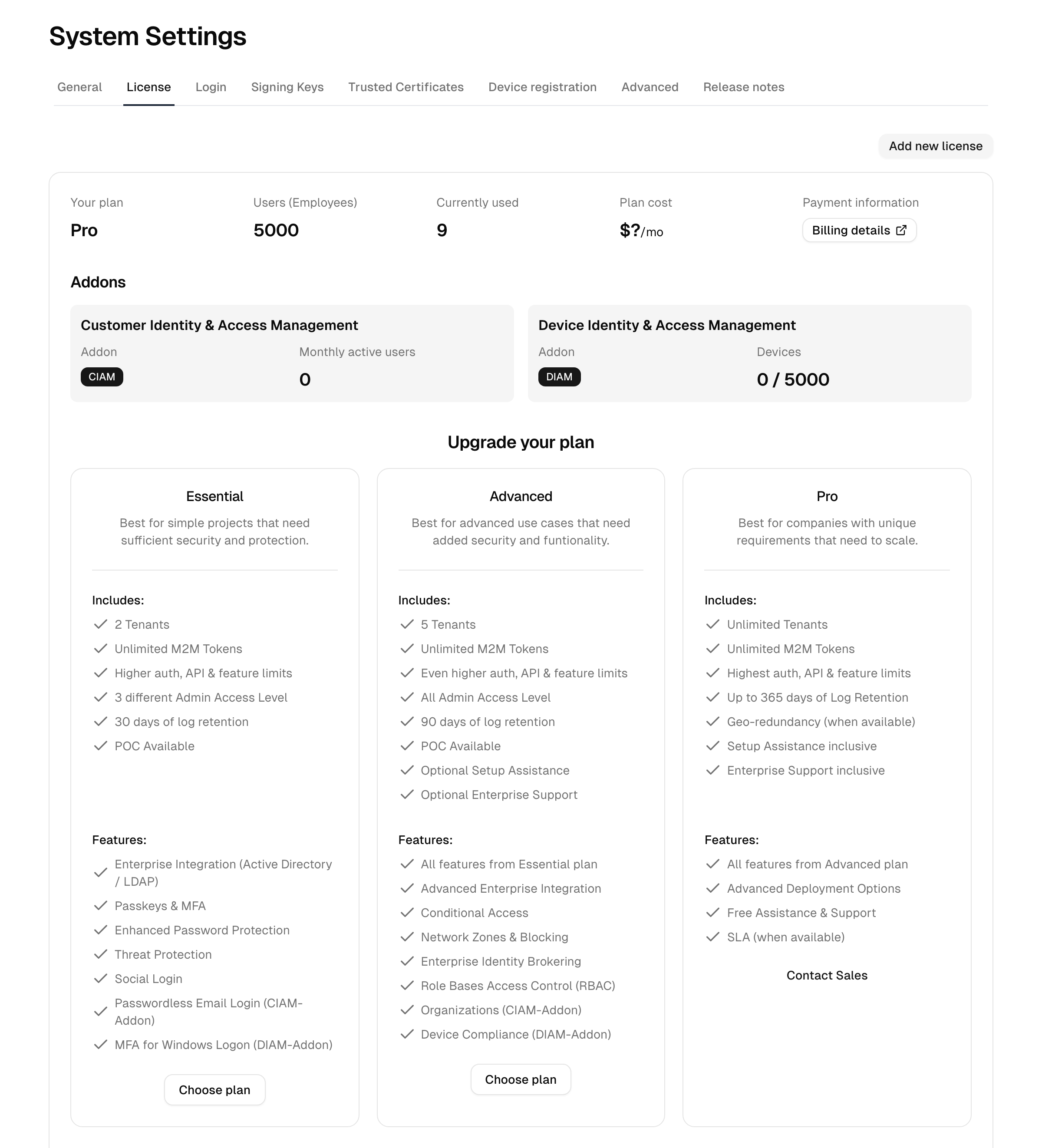
What the page shows
Your plan and usage
The summary at the top reports your current tier and your usage against the entitlements that come with it:
- Your plan: the active tier (Trial, Free, Essential, Advanced, or Pro). A trial or proof-of-concept license also shows when it expires.
- Users (Employees): your employee-user limit and how many employee users count against it. Staged, Suspended, and Deprovisioned users do not count, so this can be lower than the employee total on the dashboard.
- Payment information: a link to your billing details.
Add-ons
Two add-on cards show whether CIAM (Customer Identity) and DIAM (Device Identity) are active on your license:
- When CIAM is active, the card shows your current monthly active external users.
- When DIAM is active, the card shows enrolled devices against your device limit.
- When an add-on is not licensed, the card shows a link to enable it.
Tier comparison
Below the summary, a comparison table lays out every feature and limit across the tiers, with your current tier highlighted. This mirrors the matrix in Plans & add-ons.
Plan and price estimator
The comparison is interactive, not just a static table. Drag the employee-count slider and each tier card updates its estimated monthly price live, so you can size a plan against your headcount before committing. Each tier offers a Choose Plan action (opens the marketplace listing for that tier) and a Contact Sales link for plans that need a quote.
License status in the sidebar
The bottom of the admin console sidebar shows your plan and license status at a glance: when the license or trial expires, or Expired once it has lapsed. Click it to open a short summary:
- Licensed employees: the same count as Users (Employees) on this page, shown against your employee limit. The bar turns amber at 90% and red once the limit is reached. On an unlimited license it shows Unlimited.
- Manage license: opens this page.
- The version of the running instance.
Usage and the link are shown only to admins whose access level can open the license page. Everyone else sees the plan, status, and version.
Applying or updating a license
Whether you can change the license from this page depends on how your instance is provisioned. When self-service licensing is available, an Add new license button appears.
- Open Settings → License.
- Click Add new license.
- Paste the license token you were issued.
- Confirm. The new entitlements are picked up automatically — there is no restart.
Note: A license change can take a short time to take effect across the platform. If the Add new license button is not present, your license is managed for you and cannot be changed from the console.
How entitlements are enforced
Feature gating is evaluated live against your current license. If an add-on or tier feature lapses, the affected areas stop accepting new configuration, but records created earlier remain viewable so you are never locked out of your own data. See How gating behaves.