

Registration
Configure self-service sign-up: the default directory, the two-step form, marketing consent, and which email addresses may register.
Self-service sign-up lets visitors create their own accounts instead of waiting for an invitation. The Registration tab holds everything that decides who may register and what the registration form asks for. Session behaviour and the post-login redirect live on the Login tab.
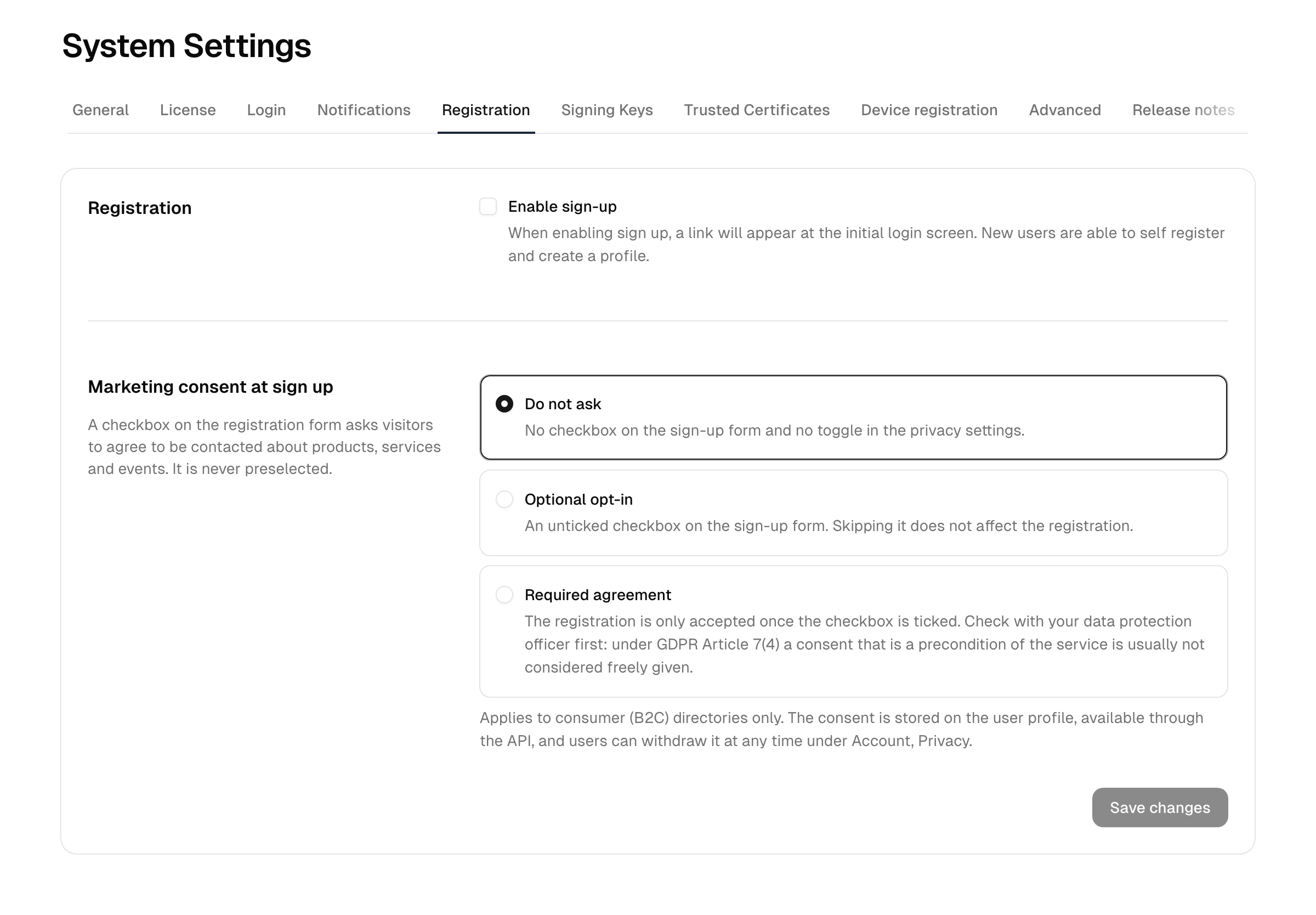
Self-service sign-up
Add-on required: Self-service registration is available with the CIAM (Customer Identity) add-on.
When CIAM is active, the Registration tab lets you allow new users to create their own accounts.
- Tick Enable sign-up.
- Choose the Default directory the new accounts are created in. Only directories that have sign-ups enabled and are of a customer (B2B/B2C) type appear here.
- Optionally tick Ask for the email address first to split registration into two steps (see below).
- Under Marketing consent at sign up, choose whether marketing communication is not asked for, offered as an opt-in, or required (see below).
- Click Save changes.
Sign-up is only enabled when both the toggle is on and a default directory is selected.
By default a self-service sign-up must confirm its email address before the account is created and can sign in. This is controlled per directory by Require email verification; see Self-service signup for the full flow and how to turn the gate off.
Ask for the email address first
With this option the registration form asks for nothing but the email address. The verification link then leads to the profile form (name, password and any custom attributes), and the account is created when that form is submitted. It shortens the first screen to a single field and guarantees that no profile data is collected for an address nobody controls.
The first step answers with the same page for every address, whether or not it is already registered, so the form cannot be used to test which addresses exist on your instance. A known address instead receives an email pointing to sign-in and password reset.
Invitations always use the regular one-step form; the invited address is already trusted. The setting is instance-wide and applies to whichever directory the sign-up lands in.
Starting the sign-up on your own website
If your website already asks for an email address (a form in a hero section, for example), link to the sign-up page with that address as a query parameter and the field arrives prefilled:
https://<your-instance>/signup?email=jane.doe@example.comOnly a syntactically valid address is taken over, an invitation link always wins over it, and an address the visitor types after a rejection wins over both. The link never submits anything on its own, so it cannot be used to send mail to a stranger, and every check on submit still applies.
Have your form link here rather than posting to the sign-up endpoint directly: the visitor then sees the terms, the bot detection's background check (if threat protection asks for one) and any rejection message on the page that owns them.
Which email addresses may register
Allowed email addresses restricts what a self-service registration may use. The three levels build on each other, from permissive to strict:
| Level | Rejects |
|---|---|
| Any email address | Nothing beyond the usual checks |
| No disposable addresses | Throwaway services (mailinator.com, 10minutemail.com …), around 8200 domains |
| Work addresses only | The above plus consumer mailbox providers (gmail.com, outlook.com, icloud.com, yahoo.com, web.de …), around 1850 domains |
A throwaway address is never a work address, which is why the strictest level covers both lists rather than trading one for the other.
The lists ship with the product and are refreshed with each release, so no external service is contacted while someone registers and the filter also works in an air-gapped installation. No list of providers can be complete, and blocking too much is the more expensive mistake in practice: sole traders and freelancers regularly use a private address for business. Exceptions therefore accepts a list of domains (commas or line breaks) that are allowed regardless of the selected level.
A rejected address gets a clear message and can be corrected right away. At Work addresses only the email field also asks for "Your work e-mail" instead of a generic address.
This applies to open sign-up only: invitations, synchronized accounts and accounts an administrator creates are never affected.
Note: The same threat protection that guards sign-in also guards the self-service sign-up form — the bot detection and per-IP rate limiting apply to registration. Configure them under Security → Threat protection.
Marketing consent
Marketing consent at sign up adds a checkbox to the registration form on which the visitor agrees to be contacted about products, services and events. It is never preselected. Three modes decide how it is asked for:
| Mode | Effect |
|---|---|
| Do not ask | No checkbox and no toggle in the privacy settings |
| Optional opt-in | The checkbox is offered; skipping it does not affect the registration |
| Required agreement | The registration is only accepted once the box is ticked |
Check the legal side before choosing "Required agreement". Under GDPR Article 7(4) a consent that is a precondition of the service is usually not considered freely given, which makes it invalid as a basis for marketing. Discuss the mode with your data protection officer.
Even in the required mode the consent stays withdrawable: users can switch it off in their account right after registering, as Article 7(3) requires. The mode is a condition of registering, not a lock on the stored consent.
The opt-in applies to consumer (B2C) directories only. Someone registering into a B2B directory signs up on their employer's behalf, and an employee account is created by the organization rather than by the person, so neither sees the checkbox even while the setting is on. If your sign-up lands in a B2B directory, switching the option on changes nothing.
The wording names the company from Branding → Appearance, so set a company name before switching the option on, otherwise the text falls back to a generic "The provider". The checkbox links no separate document; refer to the privacy policy under Branding → Appearance for the details of the consent.
Consumer users can grant or withdraw the consent themselves at any time under Account → Privacy, and withdrawal takes effect immediately. The current state is shown read-only on the user's overview in the admin console together with the date the consent was given.
The consent is stored on the user profile and exposed through the REST API as profile.marketingConsentAt: a date means consent was given at that time, null means none. A newsletter or CRM system can read it out before every campaign. It is never written through the API: consent is given by the user, not on their behalf.
Switching back to Do not ask hides both the checkbox and the privacy toggle and stops any further consent being recorded. Consents already stored are kept.
Reference
| Setting | Default | Notes |
|---|---|---|
| Self-service sign-up | Off | Requires the CIAM add-on and a default directory |
| Ask for the email address first | Off | Collects the profile behind the verification link instead of before it |
| Allowed email addresses | Any email address | Optionally rules out throwaway services, or those plus consumer providers |
| Exceptions | Empty | Domains accepted regardless of the selected level |
| Marketing consent at sign up | Do not ask | Opt-in or required agreement on the registration form, B2C directories only |