

Device compliance policies
Define what makes a device compliant, scope it to the right devices, and feed the result into authentication policies.
Add-on required: Device compliance is part of the DIAM (Device Identity) add-on and needs the device-trust capability (Advanced plan and above).
A device compliance policy describes what a managed device must satisfy to be considered secure — disk encryption on, firewall up, a current OS, no known-vulnerable software — and produces a compliance result for each matching device. That result feeds authentication policies, so you can require a compliant device for sensitive access.
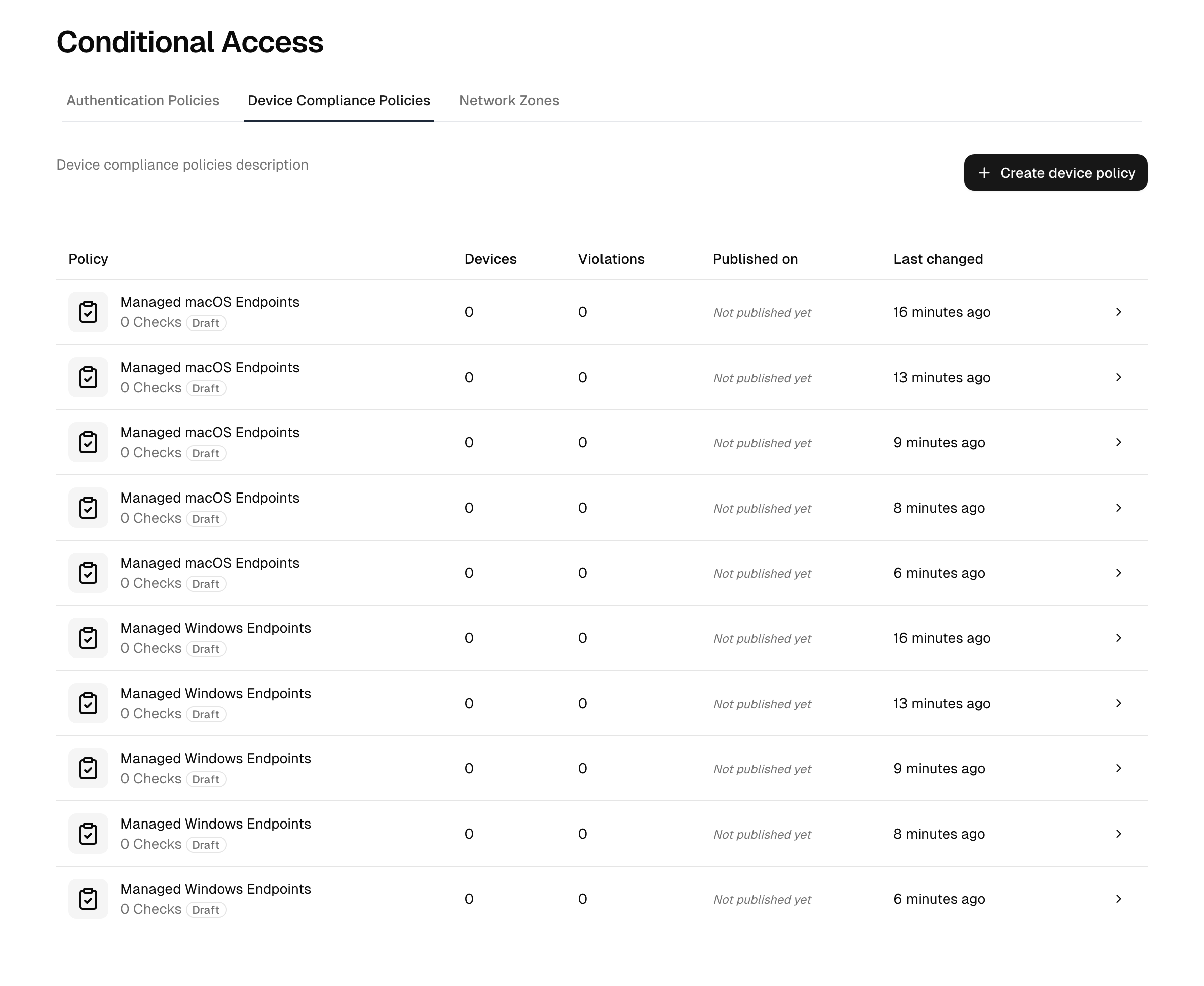
Manage these under Security → Conditional access → Device Compliance Policies. Devices are enrolled and listed in the device inventory.
How a policy is assigned to devices
Every device has exactly one device policy in force, or none. The checks of that one policy are evaluated against the device, and on Windows its Windows logon block, when switched on, sets the MFA at the device's Windows sign-in. The checks of several policies never add up.
Each policy is bound to one Platform, Windows, Linux or MacOS, which you choose when you create the policy. A policy only ever applies to devices of its platform, and its checks catalog offers only the checks for that platform. The platform cannot be changed later; to cover another platform, create a new policy.
On the policy's Settings tab you choose one of three assignment modes:
| Mode | Effect |
|---|---|
| No automatic assignment | The policy applies only to the devices it is assigned to directly. |
| Assign to all devices | The policy applies to every enrolled device of its platform. |
| Assign by conditions | The policy applies to the devices of its platform that match the conditions you set. |
When you assign by conditions, you can target by:
- Operating-system pattern, domain pattern, and hostname pattern: text the device's value must contain, case-insensitive. Separate several values with commas.
- Computer type: laptop, desktop, server, appliance or virtual machine, as the device reports itself. A virtual machine is recognised by the endpoint agent from the hardware vendor and model; the legacy client reports its chassis type only.
Every condition you set must match (logical AND). Within one condition, any of the listed values is enough, so a domain pattern of corp, lab matches a device in either domain. A policy assigned by conditions with no condition set applies to no device.
Independently of the mode, you can assign a policy to a single device directly: on the device page, with Assign device policy in the Actions menu or on its Device policies tab. A device has at most one directly assigned policy; assigning another one replaces it, and only policies of the device's platform can be chosen. The tab shows the policy in force on the device and why it applies (Assigned directly, All devices or By condition), plus a directly assigned policy that is not active yet, and lets you remove the direct assignment. Without a direct assignment, the device falls back to the matching policy of its platform, if there is one.
Which policy is in force on a device:
- A policy assigned to the device directly, once it is active.
- Otherwise, among the active policies of the device's platform that match the device, the one with the lowest Priority number (a field on the Settings tab). On a tie, the older policy applies.
A device that no policy applies to gets the Default compliance state from the device settings, and the fleet-default MFA at Windows sign-in. A policy whose checks all do not apply to the device (see the software checks below) counts as no policy. When a device moves to another policy or to none, its open violations of the previous policy are resolved automatically. Deleting a policy resolves its open violations and removes it from the devices it was assigned to directly.
Note: policies from earlier versions. Existing policies became Windows policies. A policy assigned by conditions whose only condition was the Windows platform now assigns to all devices. A policy that set more than one condition (the platform counted) now reaches only the devices matching all of them, so it may cover fewer devices than before: check the Devices column of the policy list. Where a device had several policies assigned directly, the first one was kept. Before, the checks of every policy that reached a device added up; now only the one policy in force is evaluated, so where a device relied on several policies, merge their checks into one.
Compliance checks
A policy is built from checks chosen from a catalog. Each check is a requirement evaluated against the device's reported state. The catalog includes:
- Disk encryption enabled
- Firewall enabled
- Operating-system installed / version: a named OS is present, with an optional minimum version.
- Important patches installed: required updates are applied.
- Product installed: a named product (for example, an EDR agent or a browser) is present, optionally in a minimum version.
- Product up to date: a named product is present and the package catalog knows no newer version (see below).
- Product running: a named product is not just installed but actively running.
Software checks
The three product checks work on every enrolled device, whichever client it runs. One check, "Google Chrome installed", is evaluated on a device with the previous client and on a device with the current endpoint agent alike, each from what that client reports. You pick the product once; no separate check per client exists.
- Product installed passes when the device reports the product. On a device with the current endpoint agent, an application the package catalog has identified as that product counts, as does an application with the product's name. An application you assigned to a package with Choose package on the device's Software tab counts as that package's product.
- Minimum version: an installed check has a Minimum version field in its settings (the gear button at the end of the row in edit mode). With a version set (numbers separated by dots, for example
120.0), the check also fails when the installed version is older. A version the device reports in a form that cannot be compared fails the check. - Product up to date additionally fails when the package catalog knows a newer version of the installed application. A version comparison the catalog marks as uncertain does not fail it. This check needs the current endpoint agent and the package catalog; the catalog offers it only for products it knows a package for, and only on the platforms where it does.
- Product running passes when a running process belongs to the installed product: on the current endpoint agent a process in the application's installation folder, on the previous client what that client reports as running.
Besides the curated products, the catalog offers reported packages: applications the package catalog has identified on your devices that no curated product covers, for example a developer tool. These are available with the same three checks. A package that no device has reported yet cannot be picked.
Checks marked Endpoint agent in the catalog and in the checks table (product up to date, reported packages) are evaluated only on devices with the current endpoint agent. A device with the previous client is not governed by such a check: it neither passes nor fails it, and a policy consisting only of such checks does not apply to that device at all.
The checks are evaluated from what the device last reported and what the package catalog answered for it, so a sign-in does not wait for the catalog. Newly installed software counts once its report has been checked, which normally takes seconds. Without the package catalog (for example in an on-premises installation), product installed and running keep working from the reported names; product up to date and reported packages are not offered, which the catalog says in a note.
You pick the checks relevant to your policy from the catalog, which offers the checks for the policy's platform and can be filtered by use case, category, and risk level.
Like authentication policies, device policies keep a draft set of checks that you publish to make live, so you can stage changes before they take effect (see below).
Inform only and users may fix
In edit mode each check in the table has a gear button at the end of its row that opens the check's settings: the switches below and, for an installed check, the minimum version. The table shows the result as a short note under the check's name (for example "Users are only informed"). Like every change to the checks, the settings take effect when you publish.
- Inform only: a failed check is shown to the user and recorded as a violation, but the device stays compliant. Useful for measuring your fleet before you rely on a check.
- Users may fix (installed and up to date checks of a product the package catalog knows a Windows package for, Pro plan with the DIAM add-on): when the check fails at sign-in, the compliance prompt offers the user a Fix button in the check's details. It installs the package, or its update, through the endpoint agent, from the vendor's address with the catalog's checksum, and the user refreshes the prompt once it has finished. Off by default.
A Fix button appears only where the fix can actually run. Otherwise the check's details say why, checked in this order:
- The device is isolated.
- The person signing in is not a pinned user of the device. Only a pinned user (signed in to the device as the linked Windows account) or a member of a pinned group may fix anything: the prompt runs before the second factor, so a password alone must not be enough to change a device.
- Users may fix is off for this check.
- The device does not run Windows.
- The software could not be identified reliably. Where several packages fit, only an administrator chooses one, on the device's Software tab.
- The package cannot be installed automatically (for example a per-user installer, one without a silent mode, or catalog data older than seven days).
- An installation is already running on the device.
- The device is not connected.
If the last attempt failed, the check's details say so with its time; what the device reported is on the device's Patches and History tabs. A check that has no fix at all, such as running, the firewall or disk encryption, shows its description only. Each fix is recorded in the audit log as a command with the user as its subject, and appears in the device's History tab.
Whether a non-compliant result actually blocks a sign-in is decided in an authentication policy, which references the compliance result as an outcome (inform vs enforce). The device policy produces the result; the authentication policy decides what to do with it.
Windows logon
A Windows policy can also set the MFA at Windows sign-in of the devices it governs. On the Windows logon tab, which only Windows policies have, switch on This policy sets the Windows logon MFA and choose:
- Requirement: Required (a second factor is mandatory), Optional (demanded from users who hold one) or Disabled (password only).
- Verified by: The device (the factor is enrolled and checked on each machine, works offline) or This platform (the factor enrolled in the user's account here, one enrollment for every device, every sign-in in the audit log, the machine must reach the platform). Platform verification needs the endpoint agent and is described on the Windows sign-in page.
- For platform verification: the assurance level the factor must reach and the authorized groups whose members may sign in on the devices, in addition to the accounts pinned to each device.
- For platform verification: Logon without the platform, up to 14 days, how long an account pinned to a device can still sign in while the device cannot reach the platform. Online sign-in only (the default) refuses the sign-in without the platform. See Windows sign-in.
- For platform verification below AAL3: Unlock without a second factor after a short lock, with the longest lock duration and the time after which an unlock asks for the second factor again. See Unlock without a second factor.
The block is saved as a draft and applied with Publish: the published block is pushed to every Windows device the policy governs, connected devices receive it within seconds and offline devices when they reconnect. Before you publish a platform-verified block, the tab names the authorized users who hold no factor that reaches the level; assign tokens or security keys, or publish as Optional first.
The Windows logon settings of a device come from the policy in force on it, when that policy's block is switched on. The device page shows which policy set the mode, and while a policy governs a device, Configure MFA on that device is locked. A device that no longer has a policy with a switched-on logon block in force, for example because its policy was deactivated or it moved to a policy without the block, falls back to the fleet default, verified by the device, until another policy or the manual action changes it. That default is Disabled unless changed under device settings, so deactivating a policy can switch the sign-in MFA off on the devices it governed.
The block only reaches devices with the endpoint agent on Windows. Devices with the legacy client keep the fleet default and the manual action.
Activating a policy
- Create the policy under Security → Conditional access → Device Compliance Policies, choosing its Platform in the create dialog, and set its assignment mode, conditions and Priority on the Settings tab.
- Add the compliance checks you require from the catalog.
- Publish the draft checks to promote them to the live set (this bumps the policy version). A policy can be published but not yet active.
- Activate the policy to start evaluating the devices it applies to. Activation triggers a fresh compliance re-check of those devices. You can deactivate it at any time to stop evaluation.
- Reference device compliance as an outcome in an authentication policy to actually gate access on the result.
Publish vs Activate. Publishing promotes your draft checks to the live configuration; activating turns evaluation on or off. They are separate actions, so you can stage a published-but-inactive policy and switch it on when ready.
Checking which devices a policy covers
The policy's Assigned devices tab, like the Devices column of the policy list, shows the devices the policy currently applies to. Each device is counted under exactly one policy, so a device that matches a policy but gets another one, through a direct assignment or a lower Priority number, is not listed there. Use it to confirm your assignment mode and conditions are scoping the policy the way you intended before you enforce it in an authentication policy.
Troubleshooting
- A device shows as non-compliant unexpectedly. Open the device and review which check failed. Confirm the check's configuration matches your intent, and remember that a check marked Inform only never makes the device non-compliant. Enforcement happens only where an authentication policy gates on the compliance result.
- The compliance state looks out of date. A device reports its state through its agent. An offline device keeps its last reported state; a fresh re-check runs when it reconnects (activating a policy also triggers a re-check of matching, reachable devices). If a device just came back online, allow a moment for the next report.
- The device policy blocks nothing. A device compliance policy only produces a result. To actually deny access or require step-up, reference device compliance as an outcome in an authentication policy.
- The wrong devices are covered. Use the policy's Assigned devices tab to confirm the assignment mode and conditions scope the policy the way you intended before you enforce it.
- A device is missing from a policy it matches. Another policy is in force on it, assigned directly or with a lower Priority number. The device's Device policies tab names the policy in force and why it applies.
Related
- Device inventory — where enrolled devices and their compliance state appear.
- Authentication policies — gate access on the compliance result (deny or require step-up on a non-compliant device).
- Plans & add-ons — the DIAM add-on and tier requirements.