

Authentication policies
Attribute-based conditional access: match on who, where, and when, then require MFA, step-up, or deny.
Plan note: Authentication policies are available on the Advanced plan and above (Trial includes up to 3).
An authentication policy is a set of rules that inspect the conditions of a login and decide the outcome — allow it, require multi-factor authentication, demand a stronger assurance level, or deny access entirely. Policies let you keep everyday access smooth while tightening the screws on sensitive groups, untrusted networks, or off-hours access.
You attach a policy to one or more applications; the policy's rules then govern every sign-in to those applications. Manage policies under Security → Conditional access → Authentication policies.
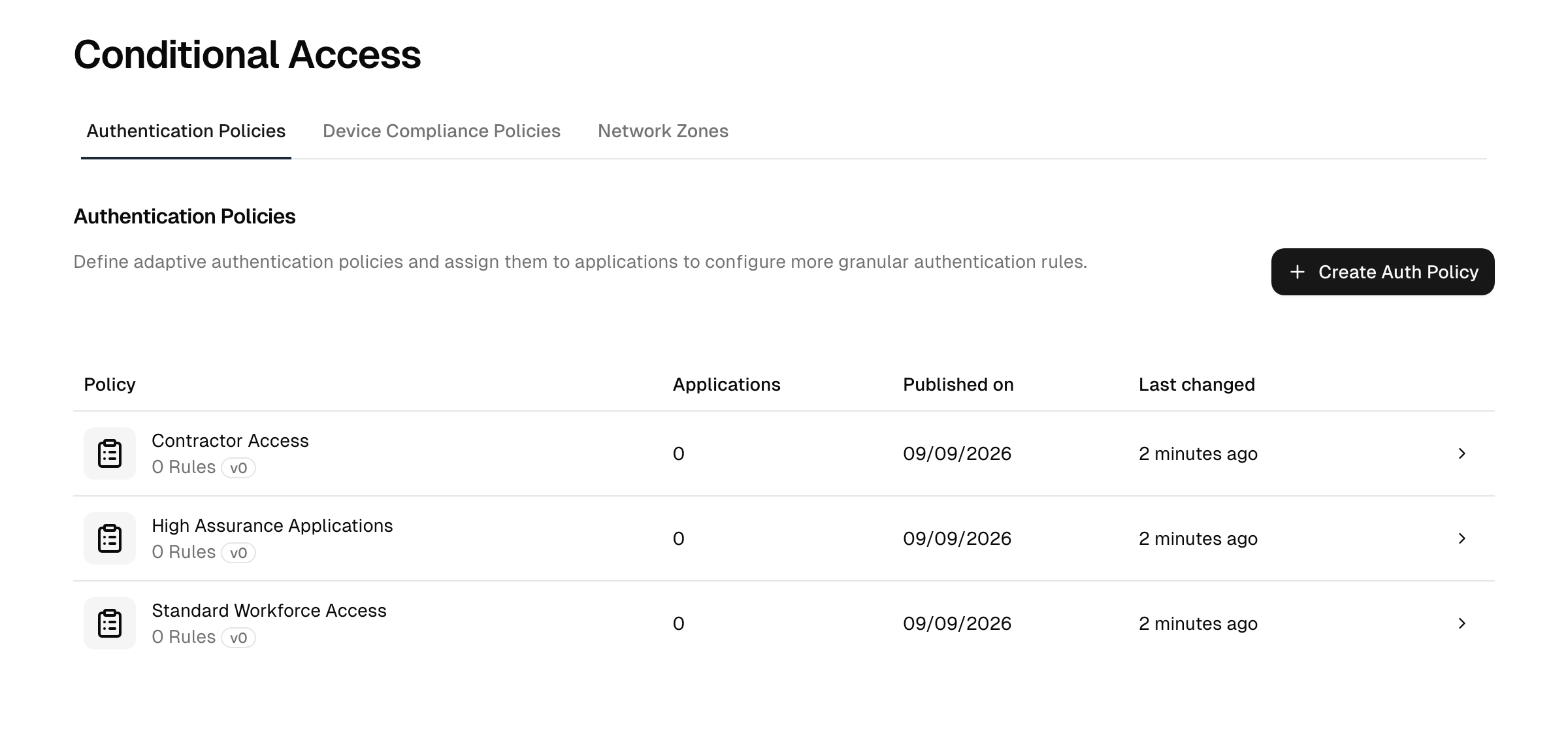
Policies and rules
- A policy is a named container, assigned to applications.
- Within it, rules are evaluated in order to find the one that matches the current login. Each rule has its conditions (the IF) and an outcome (the THEN).
- A policy keeps a published set of rules and an editable draft. You edit the draft freely, then publish to make your changes live. This lets you stage a change without affecting active logins until you are ready.
Conditions
A rule matches on any combination of the dimensions below. Each dimension can be left at any, which ignores it. There is no condition for device state or browser/OS — device compliance is expressed as an outcome (see below), not a condition input.
| Condition | Matches on |
|---|---|
| User's directory | Any directory, or one of a chosen set of directories. |
| Group membership | Any group, or at least one of a chosen set of groups. |
| User | Any user, or a named list of specific users — with an optional exclude list of users the rule must not apply to. |
| Network zone | Any IP, or in one of a set of network zones, or not in those zones. |
| Time period | Selected weekdays plus a from/to time window — for example, business hours only. |
| User risk | Any risk level, or the user's posture risk score at or above a band: moderate, high, or critical. The score is evaluated at every sign-in, so a change to the account (an enrolled factor, a changed password, a new role) counts from the next sign-in on. |
Outcomes
When a rule matches, it either blocks the sign-in or lets it proceed once the requirements below are met.
| Control | What you set |
|---|---|
| Required assurance level | The authentication level the session must reach — from a single factor up to phishing-resistant or hardware-backed MFA. This is how you express no MFA, MFA, or a stronger requirement. |
| Authentication methods | Which factors count towards the required level: any enrolled method, or only a chosen subset. |
| Re-authentication age | How long a proof stays good: for the whole SSO session, only for a set period (minutes, hours, or days), or not at all, so every application launch asks again. |
| Re-authentication mode | When a re-prompt is needed, whether the user re-enters their password plus a factor, or only a factor. |
| Device compliance | Whether and how to gate on a compliant device — see below. |
What the re-authentication age is measured against
The age is measured from the user's last authentication, and the choice changes how single sign-on feels:
- For the whole SSO session — once authenticated, opening a second app inside the platform session does not re-prompt.
- After a period — if the window has elapsed since the last authentication, the user is re-prompted even though the SSO session is still alive.
- Every sign-in — the user re-authenticates at each application launch.
This matters most for sensitive apps: a short window forces a fresh proof even when a long-lived SSO session would otherwise carry the user through silently.
Device compliance outcome
Note: The device-compliance outcome needs the device-trust capability (the DIAM add-on). See device compliance policies.
A rule can fold the device's compliance result into its decision in one of three modes:
- Disabled — device compliance is not considered.
- Inform — the user is told about potential device security risks but is not blocked.
- Enforce — assigned device compliance policies are enforced for the sign-in. Enforce offers an Allow only pinned users option, so only a user pinned to the device passes: the account linked to the Windows account signed in there, or a member of a group pinned to the device (see remote actions).
The device-compliance policies themselves define what compliant means; the rule decides how the result affects this sign-in.
Step-up and risk-based MFA
When the current session does not yet meet a rule's required assurance level, the user is prompted to satisfy the missing factor before continuing — this is step-up. You combine it with conditions to make MFA depend on the situation: for example, allow a single factor inside a trusted network zone but require full MFA from anywhere else, or demand a higher level only for a sensitive group.
Two grounded points worth calling out:
- The signals you can act on in a rule are the conditions above: network zone, time, and user risk. User risk reflects the account's posture, its privileges combined with how well it is protected. For example, place a rule user risk at least high, then phishing-resistant MFA above your general rule, or deny access to accounts in the critical band. The global Risk-based default MFA requirement is a separate, simpler check and does not use this score.
- A step-up triggered by a rule overrides an earlier "remember this browser" grace when the remembered factor is weaker than what the rule now requires — the stronger challenge still fires. This is deliberate: remembering a browser must never silently downgrade a stronger requirement.
Building a policy
- Go to Security → Conditional access → Authentication policies and create a policy with a name.
- Assign it to the application(s) it should govern.
- Add one or more rules. For each rule, set its conditions (leave dimensions as "any" where they should not narrow the match) and its outcome (allow with a required assurance level, or deny).
- Activate the rules you want in effect; you can deactivate a rule to disable it without deleting it.
- Publish the policy to move your draft rules into the live set.
Order matters: arrange rules so the most specific situations are matched before the general fallback.
What protects an app without a policy
- An application with no policy assigned is governed by the global default MFA requirement (and any per-app authentication setting), not by these rules.
- Within a policy, if no active rule matches, the policy's built-in final rule denies access. This is deny by default: a sign-in that no rule explicitly allowed never passes, so a policy that is too narrow locks users out. Always include a rule that matches everyone who should still get in.
When deciding between one shared policy across many apps and a dedicated policy per sensitive app: a shared policy is easy to maintain but applies the same bar everywhere; a dedicated policy lets you raise the assurance level or enforce device compliance for just the app that needs it. Use a dedicated policy for your highest-value applications.
Activate, deactivate, draft, and publish
- Activate / deactivate a rule to switch it on or off individually.
- Edits accumulate in the draft copy of the policy.
- Publish promotes the draft to the live rules. Until you publish, active logins continue to use the previously published rules.
Why a user was denied
When a sign-in is blocked, the user sees an access-denied page. For the cases the user can act on, the page names the reason instead of the generic message:
- Blocked by a network zone condition: access is not allowed from the current network.
- Blocked by a time period condition: access is not allowed at the current time.
- Not assigned to the application: the user has no assignment and must request access.
- Blocked by a user risk condition: the account does not meet the application's security requirements. The page links to the user's account security settings, where they can, for example, set up MFA. Account self-service is not governed by application policies, so a risk rule never locks users out of fixing their own account.
All other denials keep the generic message, so a policy never reveals more about its rules than necessary. Every denial is recorded in the audit log as Application Access Denied, including the specific reason, so you can confirm why a particular sign-in was blocked. Repeated denials for the same user and application are collapsed into one entry per minute.
Troubleshooting
- A policy locks users out. If no active rule matches a login, the built-in final rule denies access. A policy whose rules are too narrow leaves users with no matching rule and blocks them. Always include a sensible fallback rule that matches the users who should still get in.
- Your changes have no effect. Edits accumulate in the draft copy. Active logins keep using the previously published rules until you publish. Publish the draft to make the change live.
- A rule never applies. Rules are evaluated in order and the first match wins, so a broad rule placed above a specific one shadows it. Check the rule order, confirm the conditions are not narrower than intended, and check whether the user is on the rule's exclude list.
- Avoid locking yourself out. Before you publish a restrictive change, confirm a rule still matches your own account. The draft/publish split lets you stage and review the full rule set before it goes live.
Related
- Authentication levels — the assurance levels you require in a rule.
- Network zones — the zones used as conditions.
- Device compliance policies — the compliance result used as an outcome.
- Multi-factor authentication — the factors a policy can require, and the global default requirement.