

Groups
Create groups, manage members, assign roles and applications, and work with externally synced groups.
A group is a collection of users that share access. Access is granted to the group, and membership decides who currently holds it: a user added to the group receives everything the group provides. Groups are the primary tool for managing access at scale.
Why groups are the unit of access
An application or role assigned to a group follows the membership: whoever is in the group holds it, and someone you add picks up the group's apps and roles on their next sign-in without any change to the user record. For this reason, prefer assigning access to groups rather than to users one by one.
When a user leaves the group, the access the group provided is revoked. If outbound provisioning is configured on an assigned application, removing the last grant deactivates (does not hard-delete) the downstream account in the connected app.
A short rule of thumb: organize groups around access intent — an application bundle, a role, or a population a policy targets — not only around the org chart. A single group is often all three at once:
- an application assignment target (single sign-on, and provisioning where configured),
- the unit you grant a custom role to (the RBAC add-on), and
- a population that an authentication-policy rule can scope to.
That breadth is also a caution: one membership change can shift both what a user can reach and the sign-on requirements that apply to them.
Creating a group
- Open Groups and choose to create a group.
- Give it a name and an optional description. The name cannot contain
=or,, so a local group can never pose as a directory group in thegroupsclaim. - Save. You are taken to the group's detail page, where you add members, roles, and applications.
Members
The group's Users tab lists its members and lets you add or remove them. Add users by searching for them and selecting one or more; remove a member from the same tab. Only employees are added this way. External users (business customers and consumers) are never made members one by one: they join a group through external synchronization by distinguished name, and they receive applications through their directory or organization.
A user can belong to any number of groups. Membership is held directly on the user — there is no group-in-group nesting, so a group's members are exactly the users assigned to it (plus any matched through external synchronization, described below).
Roles
Note: Role-based access control is part of the RBAC feature, available on the Advanced tier and above (and during the Trial).
On the group's Roles tab you assign roles to the group. Every member then holds those roles, and therefore the permissions the roles carry, for as long as they remain a member. Add one or more roles, or remove a role, from this tab.
Application assignment
On the group's Applications tab you assign applications to the group. Members gain single sign-on (and, where configured, provisioning) to those applications.
Each assignment can carry a validity window — a start and/or end date — so access can be scheduled to begin later or expire automatically. Expired assignments stop granting access but remain visible so you can see the history.
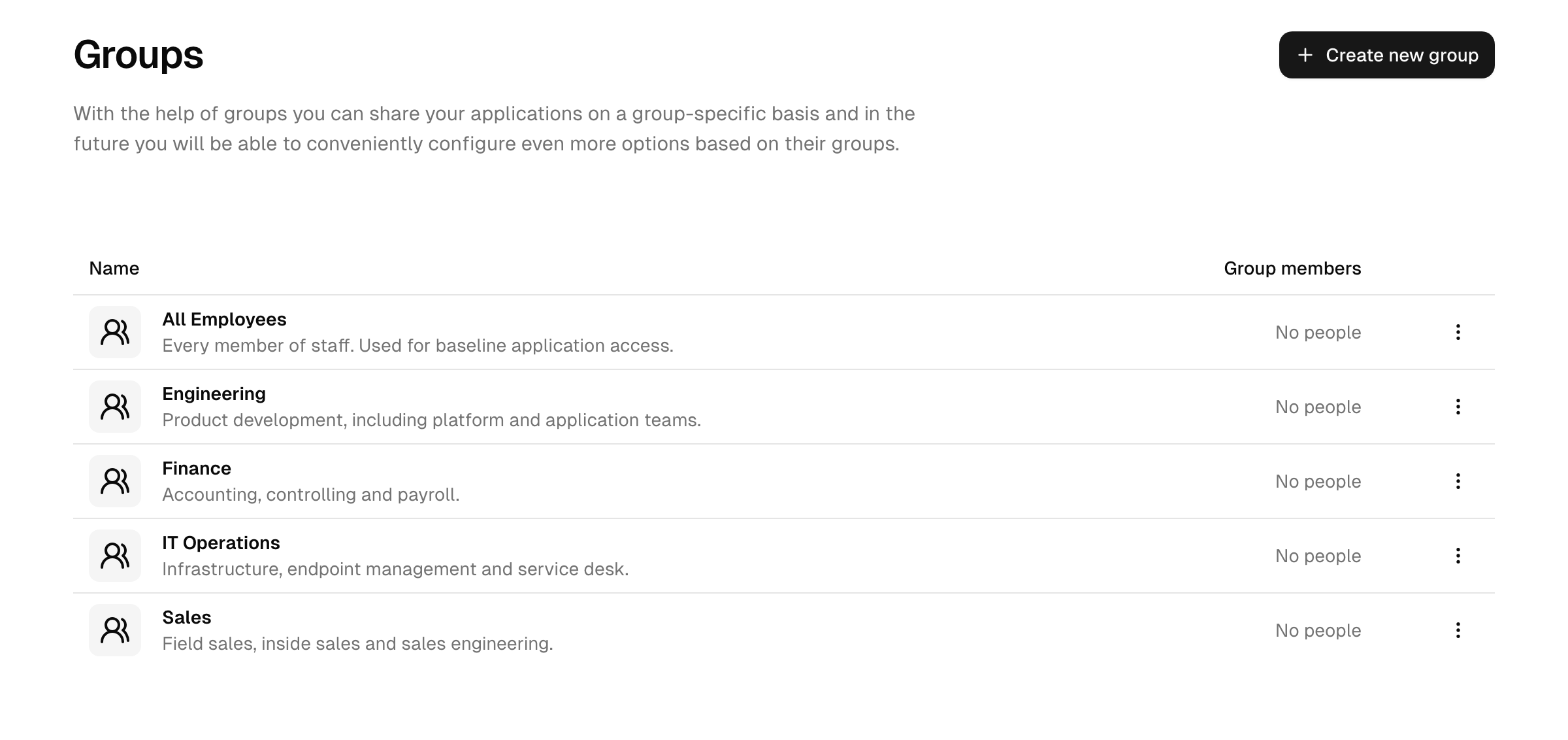
Built-in vs externally synced groups
Two kinds of group sit side by side in the same list and look identical, but their membership comes from different places:
- Built-in directory groups — you manage the members yourself in the console, on the group's Users tab.
- Externally synced groups — membership is owned upstream in a synchronized Active Directory / LDAP directory and matched by distinguished name (see below). You cannot edit members here; you can only assign applications and roles to the group and let synchronization decide who is in it.
Externally synced groups
Groups can be linked to a group in a synchronized Active Directory / LDAP directory so that membership follows the source of truth automatically. The link is the group's distinguished name (DN) — the LDAP path that identifies the upstream group.
- When a group has a distinguished name set, its membership is determined by which synced users report that DN among their group memberships, in addition to any users you add directly.
- The Groups list suggests distinguished names discovered on synced users that are not yet linked to a local group, so you can create matching local groups quickly. You can filter these suggestions by DN.
- Linking a directory group requires an access level that manages groups instance-wide; admins who manage groups only through a workspace cannot set a DN. A DN can only be set on a group without manually added members.
This lets you mirror your on-premises group structure into the platform and drive application and role assignment from it — change a user's group membership in Active Directory, and their access here follows on the next synchronization.
See also
- People — managing the users who become members.
- Roles — what roles grant.
- Applications — what you assign to a group.
- User directories — how synchronized groups arrive from AD/LDAP.