

Admin Console users
Manage the administrator team: access levels and what each can do, plus per-resource delegation.
The administrator team is the set of users who can sign in to the Admin Console and operate the platform. This page covers how to manage that team, the access levels you can assign, and how to delegate the management of a team's resources without granting broad rights.
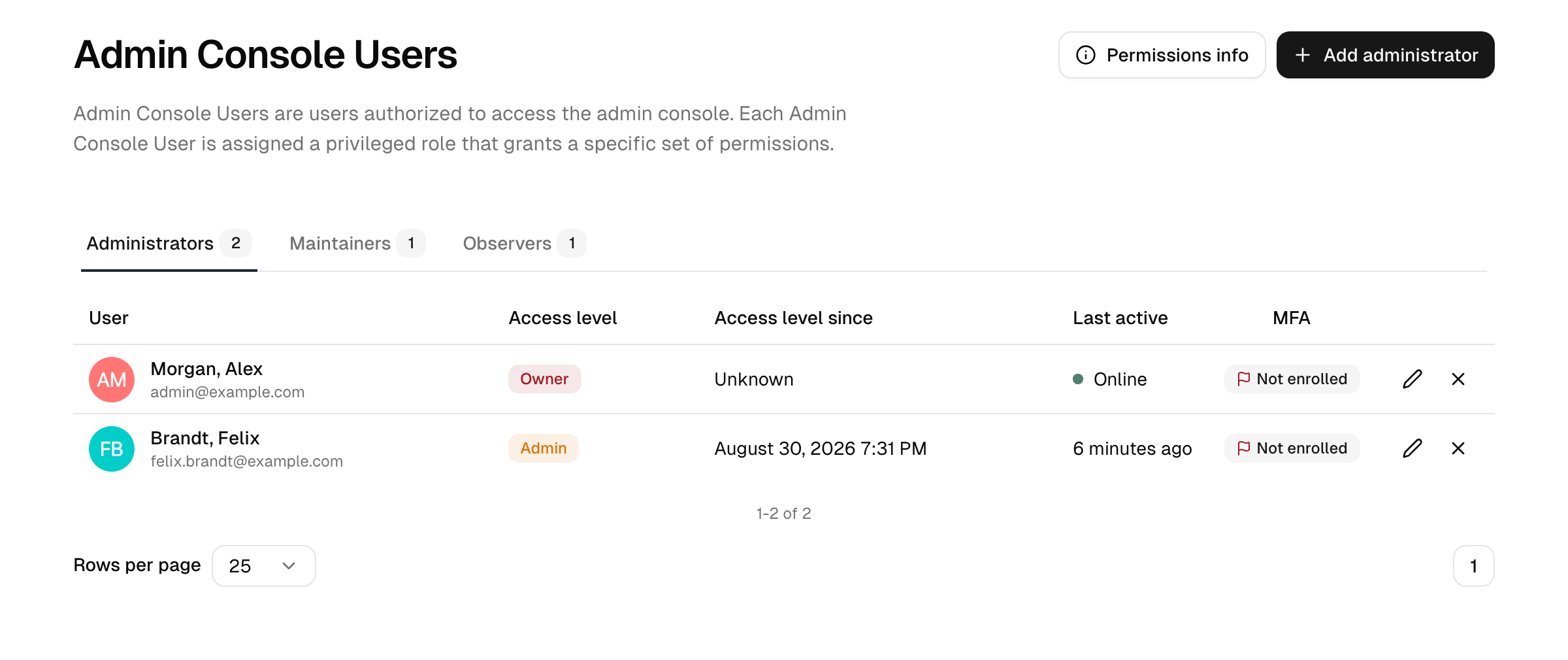
Manage the team under Governance → Admin Console Users.
The team is split across three family tabs, Administrators, Maintainers, and Observers, each badged with its member count.
Granting and changing access
An ordinary user becomes a team member when you assign them an access level; clearing the level removes them from the team again.
- Open Governance → Admin Console Users.
- Find the user (they must already exist as an employee account). You can select several users at once to grant them the same level in one action.
- Choose an access level and save.
Granting a level to a user who had none consumes one team-member seat from your subscription. Re-leveling an existing member or revoking access does not. The available seat count depends on your tier — see Plans & add-ons. When you reach the seat limit, the page shows a banner; free up a seat by revoking a member or upgrade your tier.
The list shows each member's access level, last-active time, and whether they have MFA enrolled. It is sorted by access-level rank (highest rights first), then by name. The MFA column is the same signal the security-health administrator-MFA check reflects.
A few guardrails apply:
- You cannot change your own access level.
- Non-owners can only manage users below their own level, and can only assign levels below their own. Owners are not restricted this way.
- The owner level is protected — owners cannot be deleted or suspended through the normal flows.
- Every access-level change is written to the audit log.
Note: The set of access levels you can assign depends on your subscription tier. Lower tiers expose a small set (such as owner, operator, and auditor); higher tiers unlock the full set described below. See Plans & add-ons.
Access levels
Access levels are layered: each builds on the rights of the one below it. The console groups them into three families.
Administrators
The most privileged levels, able to change configuration and manage other users.
| Level | What it can do |
|---|---|
| Owner | Full control. The only level that can change directories, network settings, and global system settings, and the only one exempt from the management guardrails. |
| Admin | Manage users, groups, devices, applications, connections, policies, and workflows; read settings and audit logs. |
| Developer | Manage applications, APIs, groups, authentication policies and roles, but only within the workspaces the developer belongs to (no instance-wide role administration); read most resources, policies, and networks. Aimed at integration work. Without a Workspaces license, a developer only reads these resources and has no audit log; with it, the audit log covers the applications and APIs of the developer's workspaces. Organizations are not managed by developers. |
Note: Every administrator must complete multi-factor authentication to reach the console. Owners are additionally held to a phishing-resistant factor (a passkey or security key with user verification). An owner who has not yet enrolled one can still sign in with a standard second factor, but is prompted to set up a passkey at every sign-in; the prompt can be postponed, not permanently dismissed. Once a passkey or security key is enrolled, it becomes required for the owner's console sign-in (a password plus TOTP or SMS is then no longer sufficient), and the last phishing-resistant factor cannot be removed.
Maintainers
Day-to-day operators with broad read and targeted write rights.
| Level | What it can do |
|---|---|
| Operator | Manage users (employees included: profile, status, groups and roles, password, MFA reset) and groups; read devices, directories, policies, networks, and settings. A broad operational level without full admin rights: applications, connections, directories, and settings stay read-only. |
| Support | Read users and organizations and update external (customer) users; help-desk oriented. No access to the audit log. |
Observers
Read-only levels for oversight and reporting.
| Level | What it can do |
|---|---|
| Auditor | Read access across users, roles, devices, directories, logs, policies, networks, settings, and workflows — without the ability to change anything. Ideal for compliance review. |
| Viewer | The minimal level: dashboard and overview lists (people, groups, organizations, applications, policies, and similar) without record details. Consumer (B2C) records and invitations are excluded, as are audit logs and settings areas. |
Note: Credential actions are capped by access level. Setting a password, changing the e-mail address or mobile number, sending an activation link or removing an MFA factor requires an access level above the target's, so an admin cannot do any of this to another admin and an operator cannot do it to an admin. Owners are exempt. The rest of the profile stays editable between peers. The reason is that e-mail and mobile are the recovery anchors: whoever can re-point them can request a password-reset link through the public form and receive the SMS code. The MFA reset link stays available at every level that holds the permission, because it goes to the user, not to the administrator. The exception is an account without a usable e-mail address or verified mobile number: there the link is shown to the administrator for handing over, which again requires an access level above the target's. Independently of access levels, a mobile number changed by an administrator or over the API loses its verification and with it the SMS factor until the user verifies the new number. A number changed by the directory sync keeps its verified state, because the organization vouches for it. Temporary access codes (a one-time stand-in for a user's second factor) can be issued only by owners and admins, and never for a user who holds an access level.
Note: Lifecycle actions are capped the same way. Activating, suspending, deprovisioning or deleting an account and moving it to another directory require an access level above the target's, so an operator cannot lock out or remove an admin and an admin cannot do it to a peer admin. Owners are exempt. An API client holds no access level and is therefore refused for any account that has one.
Per-resource delegation
Give an administrator exactly the rights they need, not a broad level "to be safe." The platform offers two narrower tools than a full access level.
Per-resource read/update permissions. The built-in levels are deliberately broad (owner, operator, auditor). Underneath them, each level is a set of per-resource read and update permissions: so a level like Developer can update the applications and roles of its workspaces while only reading directories and device policies. Pick the level whose permission set matches the job rather than handing out operator or owner.
Delegation to a team. You do not always need a console-wide level to let someone manage a few things. Responsibility for a set of resources is delegated through a workspace:
- Workspace: group applications, APIs, groups, authentication policies and roles in a workspace and let its responsibles and members manage exactly those resources and who gets access to them. Inside the workspace the member permissions apply regardless of the access level, so even a Viewer or Support admin can be given resource or access management there. This replaces application and API owners.
- Application owners (deprecated) grant no administration rights. They only count for the deprecated Owners manage access setting while it is still on for an application.
This keeps the principle of least privilege intact: the delegate manages exactly the resource they are responsible for, and nothing more. The Security Health dashboard tracks whether your administrator setup follows least-privilege guidance, including keeping the owner count small.
Delegated organization administration (CIAM)
Note: Organization-level delegation requires the Customer Identity (CIAM) add-on.
For business customers, you can scope an administrator to a single organization rather than the whole instance. An organization admin manages only that organization's own members and invitations — they cannot see other organizations or reach instance-wide settings. This is the closest the platform comes to subset-scoped administration. See Organizations and the Organization portal.
Read-only access for restricted admins
An administrator whose level lacks update rights for a settings area still sees the relevant screens — Settings and Branding forms render normally but with the Save button disabled, so they can review the configuration without changing it.
Related
- Plans & add-ons — seat limits and which access levels each tier unlocks.
- Multi-factor authentication — require strong factors for administrators.
- Security health — checks for administrator MFA and excess owners.
- Audit logs — every access-level change is recorded.