

Network zones
Named sets of IP ranges and locations, marked trusted or untrusted, consumed by authentication policies and threat protection.
A network zone is a named set of network locations — IP ranges, countries, or special service networks — that you mark as trusted or leave untrusted. Zones are the reusable building block that authentication policies reference as conditions and that threat protection uses as bypass lists.
Note: Network zones are available on the Advanced plan and above. The Trial includes up to 3 zones; lower tiers cap the number you can create.
Manage zones under Security → Conditional access → Network zones.
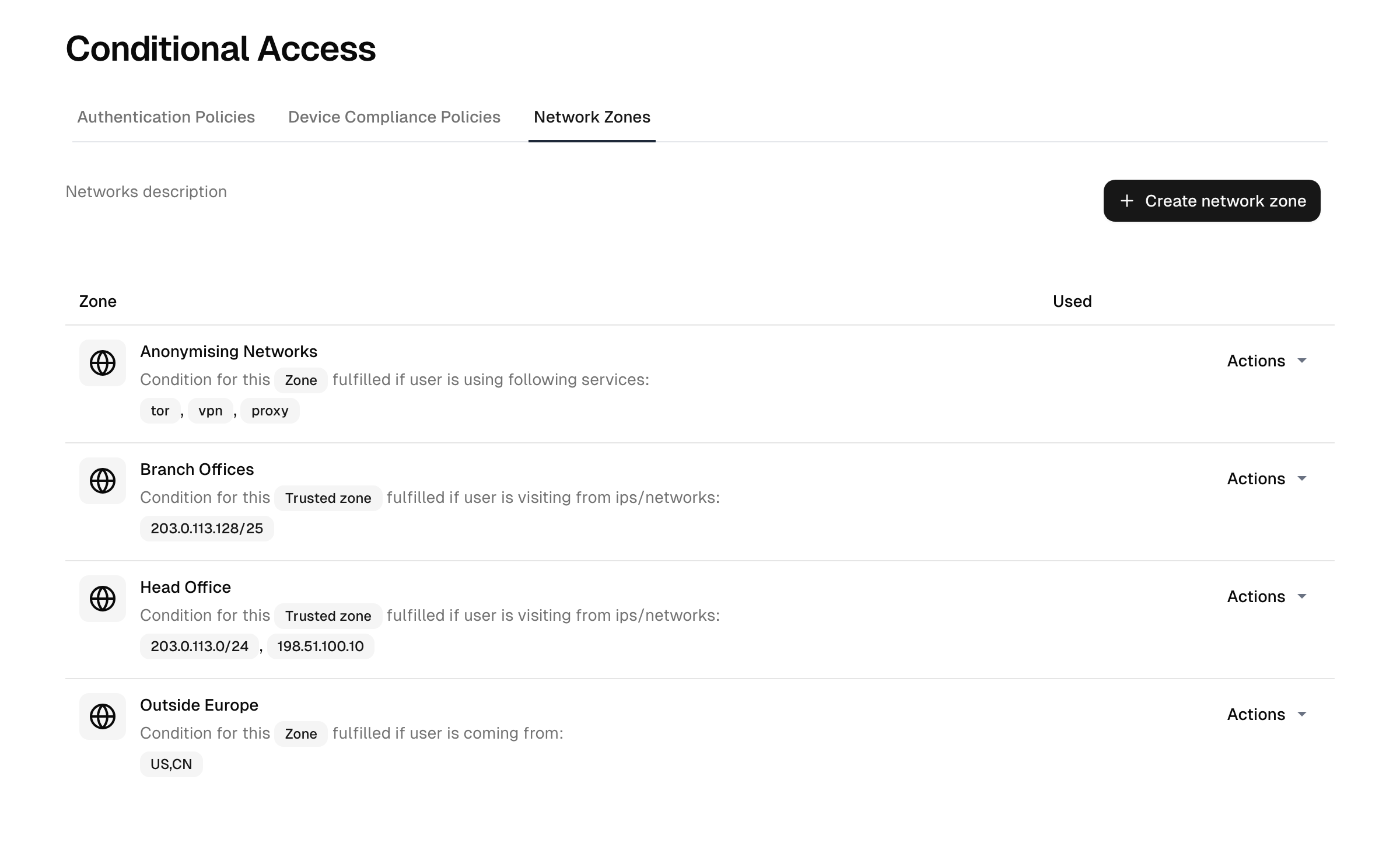
What a zone contains
A zone is defined by either a static or a dynamic membership:
- Static — IP ranges. One or more IPv4 or IPv6 ranges, entered one per line. The page also shows your current IP so you can add it quickly.
- Dynamic — countries and service networks. Instead of fixed addresses, match by:
- Country — one or more countries by geolocation.
- Service networks — recognized anonymizing or special networks: the Tor network, iCloud Private Relay, Starlink, public VPN services, and public proxy servers.
Note: The dynamic country and service-network options require the geolocation feature to be enabled; without it, only static IP zones can be created.
Trusted vs untrusted
The single most important property of a zone is whether it is trusted:
- Trusted zone — a network you consider safe, such as your corporate egress IPs or a VPN you control. Trusted zones are used to relax requirements: an authentication policy can lower or skip MFA inside a trusted zone, and threat-protection controls (bot detection, per-IP rate limiting, brute-force protection) can exempt trusted zones. The platform's general per-IP request limit is also widened for trusted zones, so many people behind one shared office or VPN address are not throttled as if they were a single client. The Trusted toggle is offered on the static IP definition.
- Untrusted zone — any zone you have not marked trusted. Dynamic country/service-network zones are treated as untrusted. Use an untrusted zone as a condition to tighten requirements (step up MFA, or deny) for traffic coming from it — for example, place anonymizing networks like Tor here.
A zone never acts on its own. An untrusted zone takes effect through the authentication policy that references it: a rule naming the zone as a condition can deny the sign-in or raise the requirement.
A zone can be activated or deactivated; a deactivated zone is kept but not evaluated.
How zones are consumed
Network zones do nothing on their own — they are referenced elsewhere:
- Authentication policies use a zone as a rule condition: if the request is in / not in this zone, then …. This is how you make MFA contingent on location. See authentication policies.
- Threat protection uses trusted zones as bypass lists: traffic from a trusted zone skips bot challenges and rate limits. See threat protection.
Because zones are shared, define them once and reuse them across every policy and protection control.
Creating a zone
- Go to Security → Conditional access → Network zones.
- Create a zone and give it a name.
- Choose the membership type: Static IP addresses or Dynamic IP addresses.
- Define its membership — paste IP ranges (IPv4/IPv6) and optionally mark the zone Trusted, or (for a dynamic zone) pick countries and/or service networks.
- Activate the zone, then reference it from an authentication policy or a threat-protection bypass list.
Note: A trusted zone weakens defenses for everyone inside it. Keep trusted zones tight and limited to networks you genuinely control.
How the client IP is determined
Zone matching uses the request's real client IP, which is established at the platform edge in front of every deployment. You define the zones; how the IP is read is fixed.
Related
- Authentication policies — use zones as conditions.
- Threat protection — use trusted zones to bypass automated defenses.
- Plans & add-ons — zone limits by tier.
Device compliance policies
Define what makes a device compliant, scope it to the right devices, and feed the result into authentication policies.
Multi-factor authentication
Enable and govern second factors (TOTP, passkeys, security keys, SMS, recovery codes), plus enrollment and per-directory requirements.