

Device inventory
The list of enrolled devices, their statuses, the detail tabs, and how to investigate a device that changed state.
Add-on required: The device inventory is part of the DIAM (Device Identity) add-on.
The device inventory is where enrolled endpoints appear after they connect to the platform through the endpoint agent. From here you review a device's posture and act on it. The inventory lives under the Endpoint area of the console.
Enrolled devices
The Devices list shows every enrolled endpoint with its name, owner, platform, last-seen time, and status. It also surfaces the device's remote IP and geolocation, an inline MFA-enrollment badge (Required or Optional), and a warning when the active user differs from the pinned user, a sign the device changed hands. You can filter the list by status, conformity, platform, MFA enrollment, and isolation, and a limit banner shows how close you are to the number of devices your subscription includes.
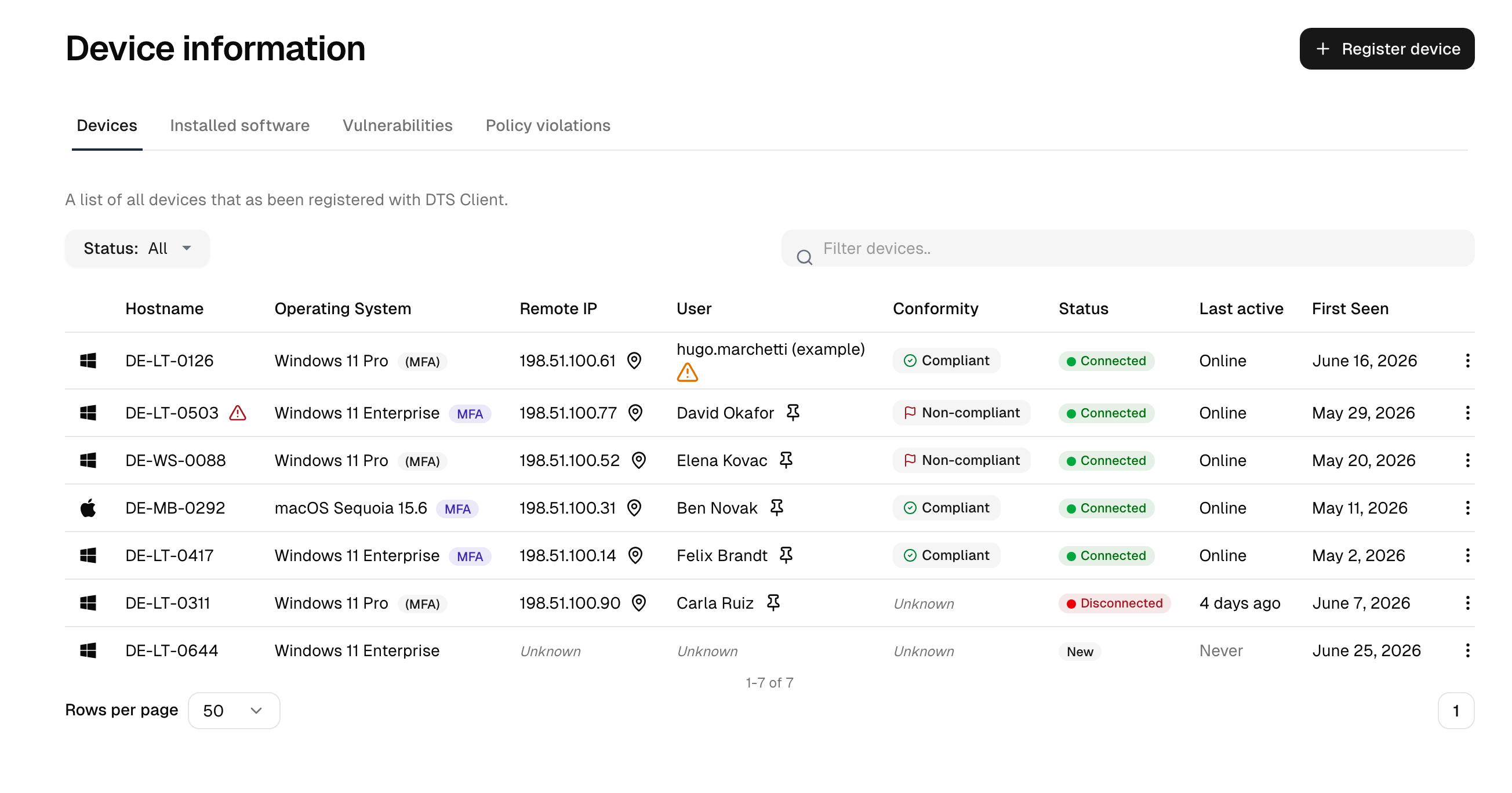
The list toolbar
The list shares one toolbar with the other console lists:
- Views opens a side panel holding the standard views and your own saved views. Save current view stores the active columns, sort, filter rules, and search term under a name. Saved views are personal and are not visible to other administrators.
- Column headers open a menu with Sort ascending, Sort descending, Filter (adds a filter rule for that column) and Hide column. The list is sorted by last activity until a column is chosen; the sort is part of the URL and is stored with a saved view.
- Columns selects which columns appear and lets you drag them into the order you prefer. Beside the columns shown by default, the picker offers domain, OS version, OS installation date, architecture, manufacturer, model, processor, memory, MFA status, isolation, approval, managed, and the last compliance check.
- Filter builds rules of the form field, operator, value. The operators depend on the field: a field with a fixed set of values offers is any of and is none of, a descriptive field takes typed text with contains, does not contain, is, is not, starts with and ends with, and a date field takes a from/to range with time from one picker (a day click fills the whole day, a blank side leaves the range open on that side; times are read in your own time zone). Every field also offers is empty and is not empty. Several values in one rule match any of them, several rules apply together. The button names the fields currently filtered on, and the cross beside it clears every rule.
- The search box looks up the best match while you type and shows the completion in grey behind the cursor. Tab accepts that completion, Enter searches for the typed text.
- The export button downloads the filtered list as a CSV file, with the visible columns in the chosen order.
The complete state lives in the page address, so a filtered list can be bookmarked or handed to a colleague.
Approval
If your instance requires approval for new devices, a freshly registered endpoint is listed as Awaiting approval and stays unmanaged until you release it. A banner at the top of the list links to the devices that are waiting, and Awaiting approval is available as a filter.
Approval is independent of the statuses below: a device can be connected and still be awaiting approval. Open the device and choose Approve device to release it. To reject one, delete it.
See Device settings for the setting itself and for what a device may and may not do while it waits.
Device statuses
| Status | Meaning |
|---|---|
| Provisioned | Enrolled but not yet connected. |
| Connected | Online and reachable. |
| Disconnected | Previously connected, currently offline. |
| Suspended | Administratively deactivated. |
| Error | The client reported an error. |
| Unknown | State could not be determined. |
| Lost | Not seen for an extended period (roughly 30 days), typically a device that re-enrolled fresh after losing its identity. |
A device also tracks an isolation status and an MFA-enrollment status, both of which you change with remote actions. Isolation can be full (Isolated) or Partially isolated; the list flags either with a warning marker, and the detail page shows a prominent alert banner while a device is isolated.
Viewing a device
Open a device to reach its detail page, where you can also rename it and edit its description. The page is organized into tabs:
| Tab | What it shows |
|---|---|
| Overview | Identity, owner, status and isolation state, plus a client-information block (device UID, client version, registration-certificate fingerprint, and any client error state) and a device-activity timeline chart (daily active, trusted-network and, if enabled, locked periods with weekly totals). |
| System | Operating system and hardware, network adapters (IP, DHCP, DNS, gateways, MAC), volumes, video cards, and the last-CVE-check and last-status-change timestamps. |
| Software | The software this device reports, the per-device view of the software inventory. On Windows and macOS devices with the current agent the row's info dialog shows which package from the package catalog an application is. The package icon in the row (Choose package) lets you pick the right one, or none of them; the choice applies to every device that has the application. The icon is highlighted where a choice is open, because several packages fit or the package is not confirmed, and a warning above the list counts those applications. |
| Patches | Missing operating-system patches, with severity, whether the update mechanism pushes the update or only offers it (Required / Optional), the patch source, and a reboot-required flag. On a device with the current endpoint agent they can be installed from here. The tab has two sections, System updates and Application updates. On Windows and macOS devices with the current agent the second one lists the newer version the package catalog knows for installed software, with the time the list was last checked. Badges mark an application that updates itself, a package without a checksum, and an uncertain version comparison. Where the package is not confirmed, Choose package sits next to the update. On Windows, application updates can be installed from here. |
| Vulnerabilities | The CVEs matched for this device. |
| Policies | The device compliance policy in force on the device, why it applies, and its result. A device has one policy at most. |
| History | The audit log entries about this device, newest first, with the audit log's search, type and date filters (the type list shows only the types that occur for this device): commands and who sent them, finished update runs with the device's message, approval, pinned users, policy violations. Entries from before the tab was introduced are only in the audit log. Shown to admins who may read the whole audit log. |
Why did this device change state?
A device that was fine yesterday can flip to offline or non-compliant. The usual causes, and where to look:
- The client stopped reporting. The device moves to Disconnected; left long enough it ages out toward Lost.
- Stale check-in. No recent contact, so the platform can no longer vouch for current posture.
- A posture check failed. A compliance check (encryption off, firewall down, a forbidden product) flipped the device to non-compliant and opened a violation.
- A vulnerability was detected. A CVE match against the reported software raised the device's risk.
Start from the device's Overview and Policies tabs for current posture, then cross-check the audit log, which records status changes and remote actions with timestamps.
Deleting a device
You can delete a device from the inventory. Deleting the record does not uninstall the client on the machine: a client that is still installed and running re-enrolls and reappears. To retire a device for good, uninstall the client first, then delete the record.
A device that lost its identity and re-enrolled appears as a new entry. That happens after a re-image, a cleared TPM or a mainboard replacement, and it is expected: the enrollment identity lives on the machine, not in the record. Open the old entry and use Mark as replaced to link it to the new one. The platform suggests candidates with the same host name or serial number but never links them on its own, because two machines cloned from the same image would otherwise collapse into a single device. A replaced entry no longer counts against your licensed device count, leaves the default list and stays reachable through the Replaced filter. The pinned users and the directly assigned policy move to the new entry, unless the new entry has a directly assigned policy of its own. The old entry keeps no pinned user, and an agent still running under its old identity no longer passes the device check at sign-in. If you prefer not to link them, the old entry ages out to Lost on its own, or you remove it manually.
Programmatic access
Note: Requires the deviceTrust feature.
Devices, their CVE matches, compliance state and the remote actions are also reachable through the management API, so you can fold them into your own automation. See remote actions and the interactive API documentation at /admin/api-docs for the available endpoints and scopes.
See also
- Endpoint agent for installing, updating and removing the client on the endpoint.
- Remote actions for isolating a device and the other commands.
- Software inventory, Vulnerabilities and Policy violations for the fleet-wide views.
- Device compliance policies for the rules evaluated against device state.
- Audit logs where device actions and command delivery are recorded.