

Device settings
Configure device enrollment, the registration certificates and the client installer that enrolls endpoints.
Add-on required: Device settings are part of the DIAM (Device Identity) add-on. The area only appears when DIAM is active on your license.
Before an endpoint can appear in your Device inventory, it has to enroll with the platform. Enrollment is anchored by a device registration certificate, and devices enroll by running a client installer built for your instance. Device Settings (in the Settings group of the navigation) manages both, plus the fleet-wide options that decide how devices are judged and how much of their activity is shown.
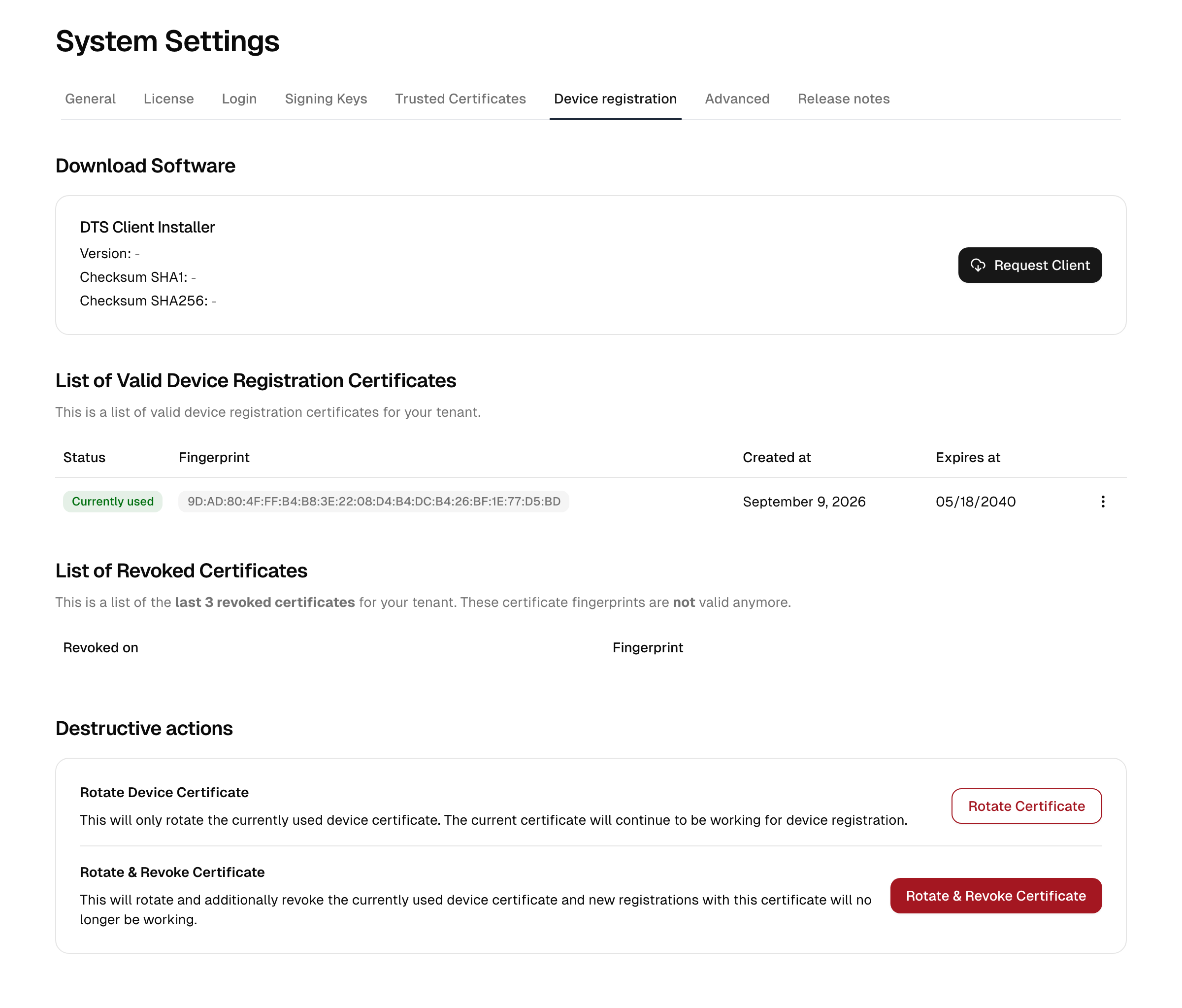
The area is split into four tabs:
| Tab | What you configure |
|---|---|
| Overview | The state of the enrolled fleet: device counts, devices awaiting approval, certificate validity and the client version |
| Registration | How new devices enroll, and the client installer they enroll with |
| Certificates | The registration certificates, including rotation and revocation |
| Settings | The default compliance state and what device activity reveals |
Overview
The overview answers the questions you would otherwise gather from several pages: how many devices are enrolled, how many are online right now, how many are waiting for approval, and how many are non-compliant. Two charts break the fleet down by connection status and by operating system.
Anything that needs attention is shown as a banner at the top: a registration certificate nearing its expiry, or a newer client version available for build. Devices awaiting approval link straight into the filtered device list.
The client installer
The client is the endpoint agent that runs on each endpoint. It enrolls the device, reports its security posture, and carries out remote actions. The console currently offers its Windows package.
- Open Device Settings → Registration.
- The Client installer card shows the available version and its SHA-1 / SHA-256 checksums.
- If no client has been built yet, click Request client to build one for your instance. When a newer version is available, a banner offers Request client version … to build the update.
- Once a build is ready, click Download client to download the installer, then distribute it to your endpoints.
Verify the downloaded file against the published checksums before deploying it.
Approving new devices
The registration certificate travels inside the client installer, so it is present on every managed endpoint. Anyone who obtains the installer can therefore start an enrollment. The Device enrollment setting on the Registration tab decides what such an enrollment is worth.
| Mode | Behaviour |
|---|---|
| Approval required | A newly registered device is listed as Awaiting approval and stays unmanaged until you approve it. Recommended. |
| Automatic enrollment | Every device that completes registration is managed immediately. Choose this for a large roll-out where approving each device individually is impractical. |
| No new devices | Registrations are rejected outright. |
New instances start in Approval required. Instances upgraded from an earlier version keep automatic enrollment, so an ongoing roll-out is not interrupted; switch to approval once the roll-out is done.
Caution: No new devices also blocks devices that have to enroll again after a reimage, a hardware replacement, or an agent reinstall. Such a device always registers as a new one, so it cannot be told apart from an unknown device. A rejected attempt is not visible in the inventory at all; it appears only in the audit log as a failed device registration. If a device you expect never shows up, check the enrollment mode first.
A device awaiting approval reports its inventory, so you can see its hostname, operating system and active user before deciding. Until it is approved it:
- is not evaluated by device compliance policies and never becomes compliant,
- receives no remote actions (isolation, MFA enrollment, queries),
- cannot satisfy a device-based rule in an authentication policy,
- does not count against your licensed device limit.
To approve a device, open Device inventory, filter by Awaiting approval, open the device and choose Approve device. The device then counts against your licensed device limit, so approval fails if the limit is already reached.
To reject a device, delete it. Note that deletion is not permanent protection: the client on that endpoint will simply register again and reappear as awaiting approval. Uninstall the client on the endpoint to stop it for good.
Default MFA for new devices
Default MFA for new devices on the Registration tab sets the MFA mode for Windows sign-in (see MFA at Windows sign-in) that every device receives as it joins the fleet: on enrollment under Automatic enrollment, or on approval under Approval required. The command is queued and delivered the moment the device connects, so the device is configured before its first user signs in. The default is Disabled, which leaves new devices as they are. Devices on other platforms are not affected.
The default applies to new devices only, and only until a device compliance policy with a Windows logon block governs the device. To set the mode for the existing fleet, publish such a block in a Windows policy assigned to all devices or to the devices you choose; it is pushed to every device the policy governs and persists. Each pushed command and its delivery appear in the audit log.
Registration certificates
Devices enrolled through the client trust your instance's current device registration certificate. The Certificates tab lists valid certificates with their status, fingerprint, and validity dates.
A registration certificate is issued with a validity of one year. Shortly before it expires, a warning appears on the overview, on this tab and in the device inventory. When it expires, new devices can no longer register. Already enrolled devices keep working, because they authenticate with their own credentials, so nothing else signals the problem. Rotate the certificate and request a new client installer in good time.
Certificates issued by older versions of the platform carry a much longer validity. Rotating one replaces it with a one-year certificate.
| Status | Role |
|---|---|
| Current | The certificate new enrollments use. |
| Previous | The prior certificate, kept so devices enrolled under it stay recognized until it is revoked. |
For any certificate you can download it as a .pem file from its actions menu, and revoke a non-current certificate.
Rotating and revoking certificates
The Destructive actions section at the bottom of the Certificates tab provides:
| Action | What happens |
|---|---|
| Rotate certificate | Issues a new current certificate; the old one becomes previous. A fresh client build is then required. |
| Rotate & revoke certificate | Rotates and immediately revokes the previous certificate, so enrollments relying on it stop working. |
| Revoke certificate | Revokes the previous certificate. |
A list of the most recently revoked certificates is kept for audit purposes. Each entry shows how many devices enrolled with that certificate; the number links to the device list filtered to exactly those devices, so a revoked installer can be reviewed device by device.
Caution: Rotating the device certificate invalidates the current client build, so you will need to request and redistribute a new client. Revoking a certificate that enrolled devices still rely on will break their registration. Rotate first and confirm devices have moved over before revoking.
Fleet-wide options
The Settings tab holds the options that apply to every device.
Default compliance state
A device that no device compliance policy applies to has nothing to be judged against. Default compliance state decides what it counts as in the meantime. Compliant is the default and keeps such devices usable; Non-compliant is the stricter reading and will block them wherever an authentication policy requires a compliant device. Change it only once your policies cover the fleet, otherwise unpolicied devices lose access.
Device activity
The device overview shows an activity chart built from the client's heartbeats (see Device inventory). Show screen lock state decides whether periods with a locked console session appear as their own state and are separated in the daily totals. It is off by default: locked time then counts as active time. The lock share is recorded either way, it is only not shown. The lock state is reported by the endpoint agent only.
The chart can reveal presence patterns. Check the legal requirements in your organisation (in Germany typically works-council co-determination) before enabling the detail; the overview carries a legal notice on the permitted use of the data.
Windows logon exclusions
Windows logon exclusions lists local Windows account names that sign in with the password alone on every device with the endpoint agent, in every MFA mode, also while the platform is unreachable. This is the break-glass path for devices whose second factor is verified by the platform: keep at least one local administrator account here. One name per line, at most 50. A change is pushed to every device with the endpoint agent at once.
Related
- Manage enrolled endpoints in the Device inventory.
- Install, update and remove the agent itself: Endpoint agent.