

Configure how the platform sends email (the built-in delivery or your own provider) and send a test message.
Plan note: A custom email provider is available on the Essential plan and above. See Plans & add-ons. On lower tiers the platform sends all email through its built-in delivery.
The platform sends transactional email for password resets, address verification, multi-factor enrollment, welcome messages, approval notifications, invitations, and account recovery. By default these messages are delivered through a built-in provider with no setup. On the Essential plan and above you can connect your own email provider so messages originate from your domain and use your deliverability and compliance controls.
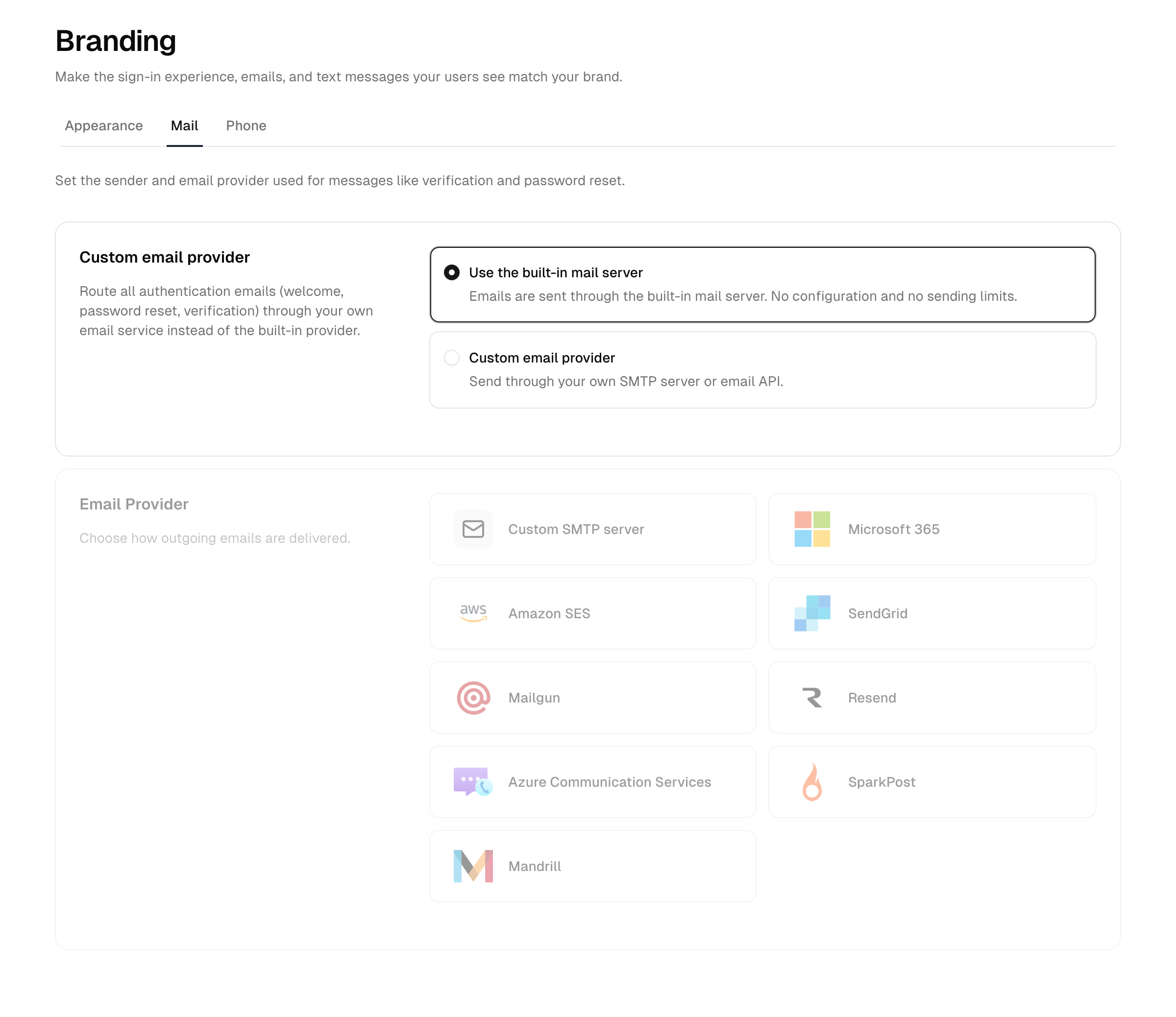
Choose a delivery mode
- In the Admin Console, open Branding → Mail.
- Choose how email is delivered:
- Default delivery provider — the built-in service. Nothing to configure.
- Custom email provider — connect one of the supported providers below.
- Select Send test email, then Save changes.
If you stay on the default provider there is nothing more to set up — your email is already being delivered.
Connect your own provider
- Select Custom email provider.
- Pick a provider from the grid. Each provider reveals only the fields it needs.
- Fill in the From address (for example
"Your App" <support@yourapp.com>) and the provider-specific fields. - Select Send test email. Once the test succeeds, select Save changes.
Supported providers
| Provider | What you supply |
|---|---|
| Custom SMTP server | Host, port, TLS version, whether to use TLS, and a username/password if your server requires authentication |
| Microsoft 365 | Tenant ID, client ID, and client secret of a registered app |
| Amazon SES | Region, access key ID, and secret access key |
| SendGrid | API key |
| Mailgun | API key, sending domain, and region (EU/US) |
| Resend | API key |
| Azure Communication Services | Endpoint and access key |
| SparkPost | API key and region (EU/US) |
| Mandrill | API key |
Custom SMTP: Authentication is optional — leave the username and password blank if your relay accepts unauthenticated submission from the platform. Choose the TLS version your server supports.
Secret fields
Credentials such as API keys, client secrets, and SMTP passwords are stored securely and shown as a masked field with a reveal control so you can confirm the value without exposing it on screen. To keep an existing secret unchanged, leave its field as saved.
Send a test email
Send test email verifies a provider configuration end to end before you save it. The platform sends a test message to your own admin address using the values currently entered in the form; nothing is saved by the test. The result appears as a notification and names the likely cause if the test fails (for example rejected credentials, a TLS mismatch between port and Use TLS, or an unreachable server).
Important: Save changes becomes available only after a successful test, and any later edit to the form disables it again until the next successful test.
If the test does not arrive, check your provider credentials, the From address, and your provider's sending domain or sender verification.
Which emails the platform sends
The platform sends transactional email for the flows below. Use this list to confirm a provider works against the flows you care about — send yourself through each path and check delivery. Several of these are security-event notices that are also recorded as audit entries, so an admin can correlate a user-questioned email with the audit log (see Threat protection).
| Triggered when | |
|---|---|
| Verify email address | A user adds or changes their email and must confirm it |
| Verify mobile number | A user adds or changes their phone number |
| Invitation / activation | An admin invites a user, or a self-service sign-up needs activation |
| Password reset | A user requests a reset, or an admin sends one |
| Account unlocked | An account that was locked out is recovered or unlocked |
| Breached-password notice | A sign-in is blocked because the password appeared in a known breach |
| MFA enrollment confirmation | A user registers a new second factor |
| MFA email code | A one-time code is delivered for email-based MFA |
| New sign-on notification | A sign-in arrives from an unfamiliar device |
| Approval notification | A request a user submitted is approved or rejected |
What you can customize
- The From (sender) address — set per provider on this page (for example
"Your App" <support@yourapp.com>), so messages originate from your domain. - Logo and accent color — the logo from Settings → General and the accent color from Appearance are applied to every message so emails match your sign-in experience.
The wording of each message comes from the instance's translated language strings — one set per enabled language — not a free-form per-template editor. There is no HTML/code template engine and no per-message variable scripting. To change the languages your emails use, manage the enabled languages on Settings → General.