

Approval flows
Build approval flows: rules scoped by directory, group, or user, with reject, auto-approve, or sequential human-approval outcomes.
Plan note: Approval workflows are available on the Advanced plan and above (Trial includes up to 3 workflows).
An approval flow is a named set of rules that decides what happens when a user requests access to an application. Each rule has a condition (who it applies to) and a conclusion (the outcome). When a request comes in, the platform evaluates the flow's rules in priority order and applies the first matching, active rule, so order your rules from most specific to most general.
You manage flows under Workflows → Approval flows in the Admin Console.
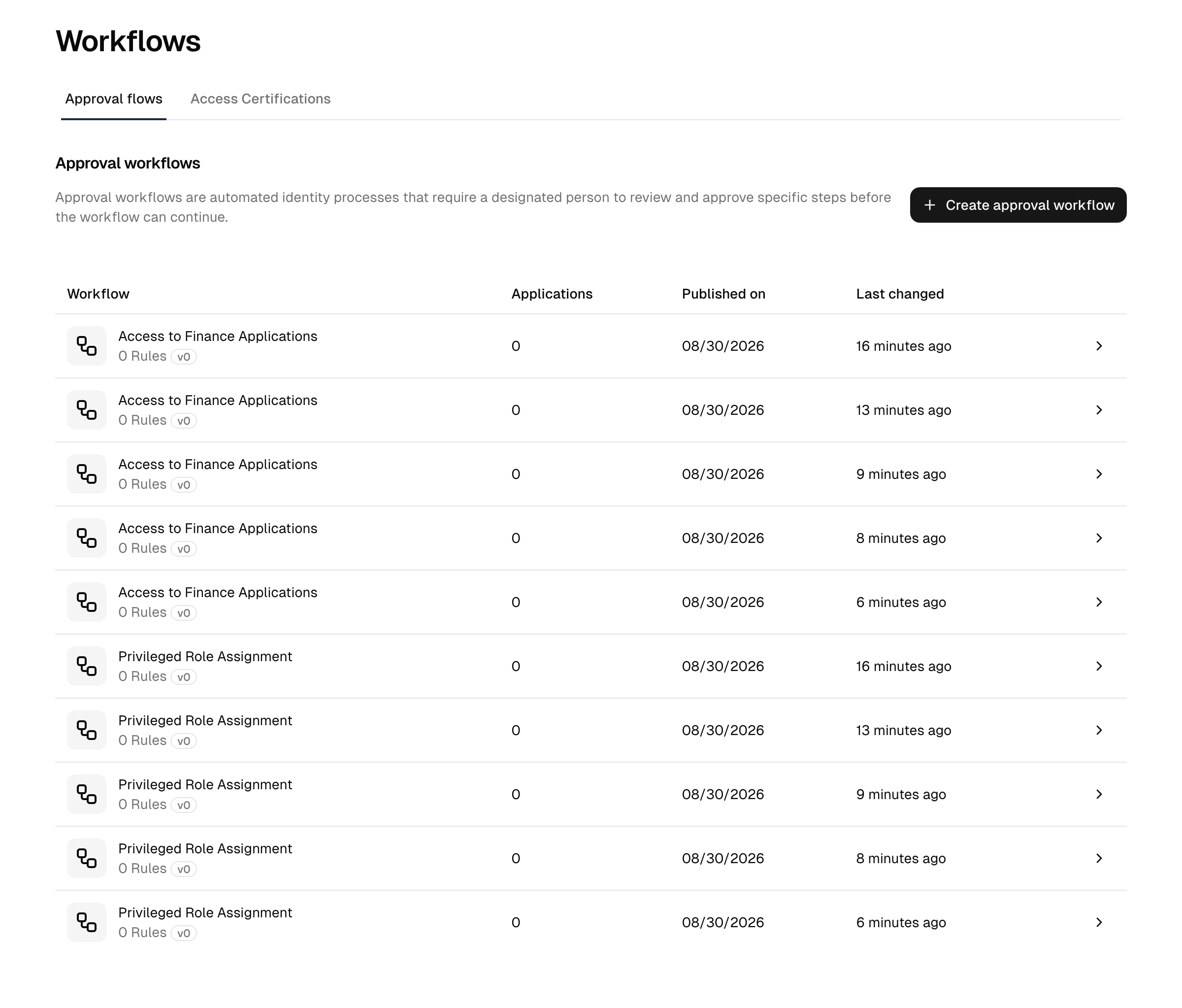
Create a flow
- Open Workflows → Approval flows and choose Create approval flow.
- Give the flow a descriptive name (for example, "Finance applications" or "External access").
- The flow opens in edit mode, ready for you to add rules.
A new flow has no rules until you add them. A flow with no matching rule has no effect on a request.
Add a rule
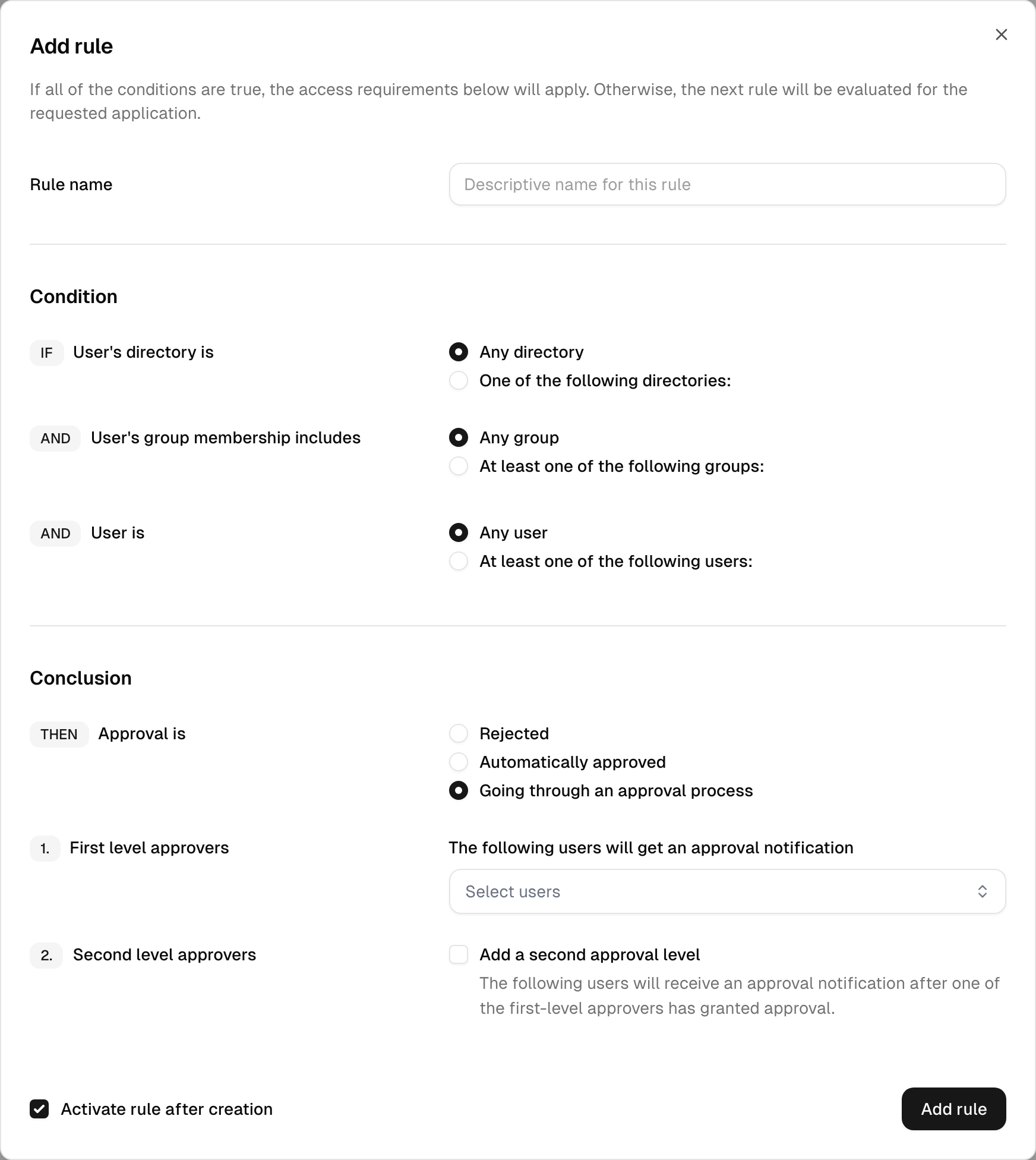
Each rule is built from an IF / THEN structure: the conditions narrow down which users the rule applies to, and the conclusion sets the outcome.
- On the flow's Workflow rules tab, select Edit, then Create rule.
- Enter an optional rule name to make the rule easy to recognize later.
- Define the conditions (all must match for the rule to apply):
- The user's directory is — any directory, or one of a selected list of directories.
- The user's group membership includes — any group, or at least one of a selected list of groups.
- The user is — any user, or at least one of a named list of users, optionally with named users to exclude.
- Define the conclusion — what happens when the conditions match:
- Rejected — the request is denied automatically.
- Automatically approved — access is granted immediately, with no human review.
- Going through an approval process — the request is routed to the approval levels you define below.
- If you chose an approval process, configure the approval levels (see below).
- Optionally tick Activate rule after creation so the rule takes effect once published. (Inactive rules are skipped during evaluation.)
- Save the rule.
Who approves
When a rule routes requests through an approval process, Approvers are chooses where the approvers come from:
- Named approvers: the fixed level lists below (the default).
- Workspace responsibles: the responsibles of the workspace that contains the requested application, resolved when the request is processed (a single approval level). Use this when approval should follow the workspace instead of a fixed list of names. A responsible never approves their own request: they are left out of the approvers of a request they made themselves.
Note: With Workspace responsibles, a request for an application that is not in a workspace, or whose workspace has no responsibles other than the requester, cannot be routed: the request fails with an error and is never approved automatically. Such applications are also hidden from the self-service request catalog. The option is available when workspaces are enabled for your plan.
Approval levels
An approval process supports up to three sequential levels. Each level holds a set of eligible approvers — and any one of them approving is enough to advance the request to the next level.
- First level approvers — the users notified when the request is created. (Required for an approval process.)
- Second level approvers (optional) — notified after a first-level approver grants approval.
- Third level approvers (optional) — notified after a second-level approver grants approval.
Add the second and third levels only if you want multi-stage sign-off; a single level is the common case. When the final configured level approves, access is granted.
How rule priority works
You do not set priority numbers manually — the platform derives a rule's priority from how specific it is. Rules with directory, group, or user conditions outrank broad "any" rules, and the first matching active rule wins. Place narrow exceptions (for example, a rule that excludes a specific user) above your catch-all rules so they are evaluated first.
Draft and publish
Rule edits are kept as a draft until you publish them — the live flow keeps running on its currently published rules while you work.
- While editing, an Unpublished changes banner shows that your draft differs from the live version.
- Publish promotes the draft to live and increments the flow's version. Any in-flight approval requests using this flow are reset so they re-evaluate against the new rules.
- Discard changes throws the draft away and keeps the live rules unchanged.
Note: Publishing resets pending requests for this flow. If requests are currently mid-review, the console warns you and shows how many are affected before you publish.
Activate, deactivate, and delete rules
From the rule list (in edit mode) you can:
- Activate / Deactivate a rule — an inactive rule stays defined but is skipped during evaluation.
- Delete a rule — these changes also go through the draft/publish cycle.
A flow's name is edited on its Settings tab; the same tab holds the Delete workflow action for removing the whole flow.
Bind a flow to an application
A flow does nothing until an application points at it. On an application's policy settings, enable:
- User can request access (self-service) — choose the flow that gates user-initiated access requests.
See Applications for the full procedure.
What you can gate behind approval
Approval flows govern self-service access requests: a user asks for an application and the flow decides.
Approval of administrator-made assignments is not available. To control administrator assignments, put the application in a workspace with managed access, which limits who may assign it, and review granted access with an access certification campaign.
When a request is finally approved, the platform performs the assignment for you, optionally honoring a start and end date set by the approver.
Reference
Rule outcomes
| Outcome | Effect |
|---|---|
| Rejected | Request is denied automatically; no review. |
| Automatically approved | Access is granted immediately; no human review. |
| Approval process | Request is routed through 1–3 levels of human approvers. |
Rule conditions
| Condition | Options |
|---|---|
| Directory | Any directory, or a selected list |
| Group membership | Any group, or at least one of a selected list |
| User | Any user, or a named include list with an optional exclude list |
Draft actions
| Action | Effect |
|---|---|
| Publish | Promotes draft rules to live, bumps the version, resets in-flight requests |
| Discard changes | Deletes the draft, keeps the live rules |
Troubleshooting
- A request was decided unexpectedly. Remember the first matching active rule wins, ordered by specificity. A broad "any user → automatically approved" rule will catch requests you meant a narrower rule to handle — reorder by making the intended rule more specific, or deactivate the broad one.
- An approval process never notifies anyone. A process rule needs at least one first-level approver. A rule with only second- or third-level approvers configured cannot run.
- Requests end in an error state. The rule uses Workspace responsibles, but the application is not in a workspace or its workspace has no responsibles. Add the application to a workspace with responsibles, or switch the rule to named approvers.
- The application can't select a flow. Self-service gating requires the workflows feature on your plan and at least one approval flow to exist. Create a flow first, then bind it on the application.
Related
- Approvals — the inbox where pending requests are decided
- Your tasks & approvals — where approvals waiting on you appear
- Applications — binding a flow to an application
- People — the users matched by rule conditions
- Plans & add-ons — what your plan includes